

Getting started
Add a customer and their aircraft
Every work order and estimate hangs off an aircraft, and every aircraft belongs to a customer. Add both before you open the first job.
Add the customer
- Open Customers in the sidebar and click + Add customer.
- Enter a first name and an email. Phone and last name are optional.
- If the customer is a business, fill in Company name. Invoices go out under the company name, and the person becomes the contact.
- Click Add customer.
Email is required. Invoices, statements, and estimates reach the customer by email, so a customer without one cannot be added.
Customers do not need to sign in, and most never do. Send an invitation to sign in is off by default for them.
If the name or email matches someone already on file, you see Possible match. Use this person opens the existing record so you do not end up with two.
Add the aircraft
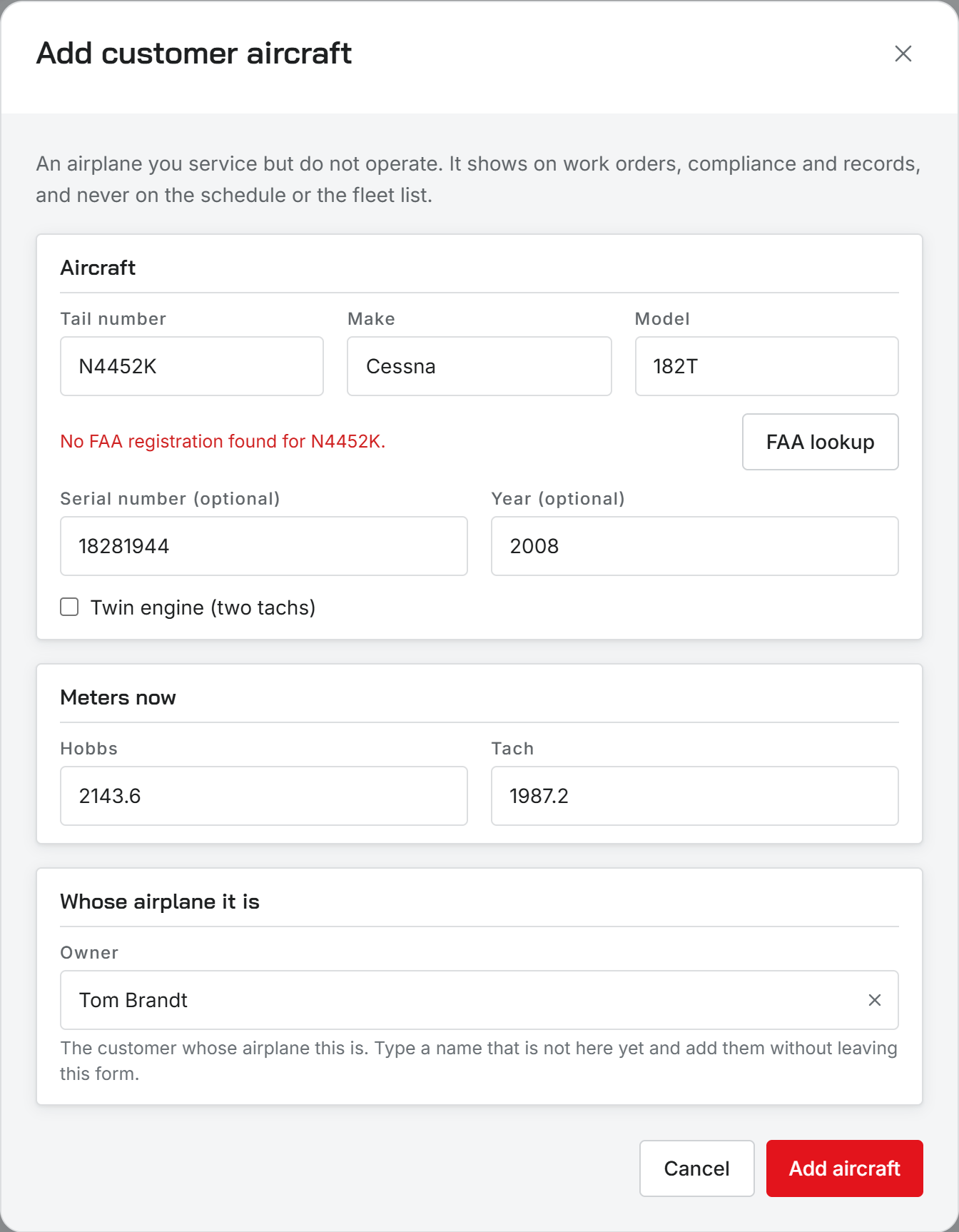
You take in an aircraft from any aircraft picker in the shop, such as the one on a new work order or estimate. Type the tail number. If it is not on file, the list offers to add it as a customer aircraft and opens Add customer aircraft with the tail filled in.
- Aircraft: tail number, make, and model are required. FAA lookup fills in make, model, year, and serial number for a US registration.
- Check Twin engine (two tachs) for a twin, so it tracks a tach for each engine.
- Meters now: the Hobbs and tach readings as the aircraft sits today. Later readings are measured from here.
- Whose airplane it is: pick the owner. You can add a new customer from this field if they are not on file yet.
Click Add aircraft. It shows up on the customer’s record and is ready for work orders, compliance, and records.
Was this page helpful?
Can’t find what you need? Contact us - a real person reads every message.