

Work orders
Open a work order
A work order is one job on one aircraft. You can open one from scratch, from a customer’s request, or from an approved estimate.
From scratch
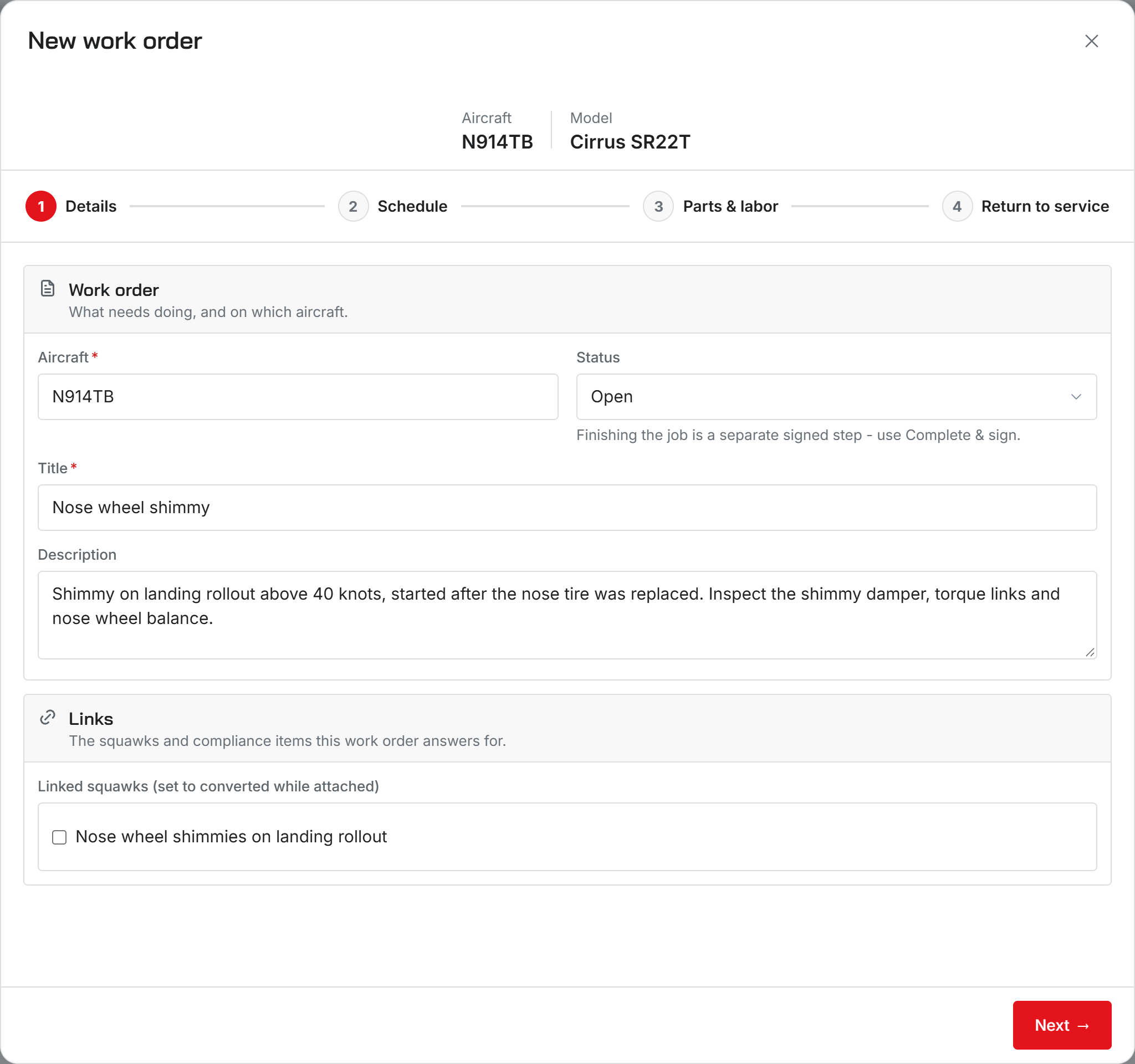
- Open Work orders in the sidebar and click New work order.
- Details: pick the Aircraft and give the job a Title. Both are required. Description is optional.
- Schedule: choose who it is Assigned to, set the downtime dates if you know them, and check Aircraft is out of service while this work order is active if the airplane should not fly until you release it.
- Parts and labor: add lines now or later.
- Return to service: write the Maintenance release if you already know it. It prefills the return-to-service note when you sign the job off.
- Click Create work order.
You can jump between steps from the strip at the top. Nothing forces you to fill them in order.
There is no customer field. The customer comes from the aircraft’s owner, so make sure the aircraft is on the right customer first. The aircraft cannot be changed once the work order exists.
From a request or an estimate
On Requests, click Triage on a customer’s report, then Create work order from this squawk. The new work order opens with the aircraft, title, and description already filled in, and the request is linked to it.
On Estimates, use Convert to work order. Every line on the estimate comes across, so nothing gets typed twice.
Statuses
A work order is Open, Scheduled, In progress, Awaiting parts, Complete, or Canceled. You can set the first four by hand. The first time anyone starts the clock on an Open job, it moves to In progress by itself.
Complete and Canceled are not in the status list. Finishing a job is a signed step called Complete & sign, and canceling has its own Cancel work order action.
Squawks and compliance items
Link the squawks the job fixes and the compliance items it addresses. Linked squawks are marked as converted while they sit on the job. When you sign the job off, you can resolve them and roll the compliance items forward in the same step.
Finding a job
The list shows Active jobs by default. Switch to Completed, Canceled, or All, and turn on Mine to see only yours. Click a row to open the work order. It has tabs for Details, Parts & labor, Files, Work time log, Procedure, and Links.
Convert an estimate to a work order
Was this page helpful?
Can’t find what you need? Contact us - a real person reads every message.