

Getting started
Invite your staff and pick roles
Each person on your staff gets one of four roles. The role decides who can sign a return to service and who can see estimates and invoices.
Invite someone
- Open Staff in the sidebar. The Users tab lists everyone on your staff.
- Click + Invite.
- Enter a first name and email. Last name, phone, and company are optional.
- Pick a role. Technician is selected by default.
- Leave Send an invitation to sign in checked and click Send invite. They get an email with a link to sign in.
Roles and what people see
There are four roles: Administrator, Inspector, Technician, and Office. Only inspectors and administrators sign a job off, and only office staff and administrators see estimates and invoices.
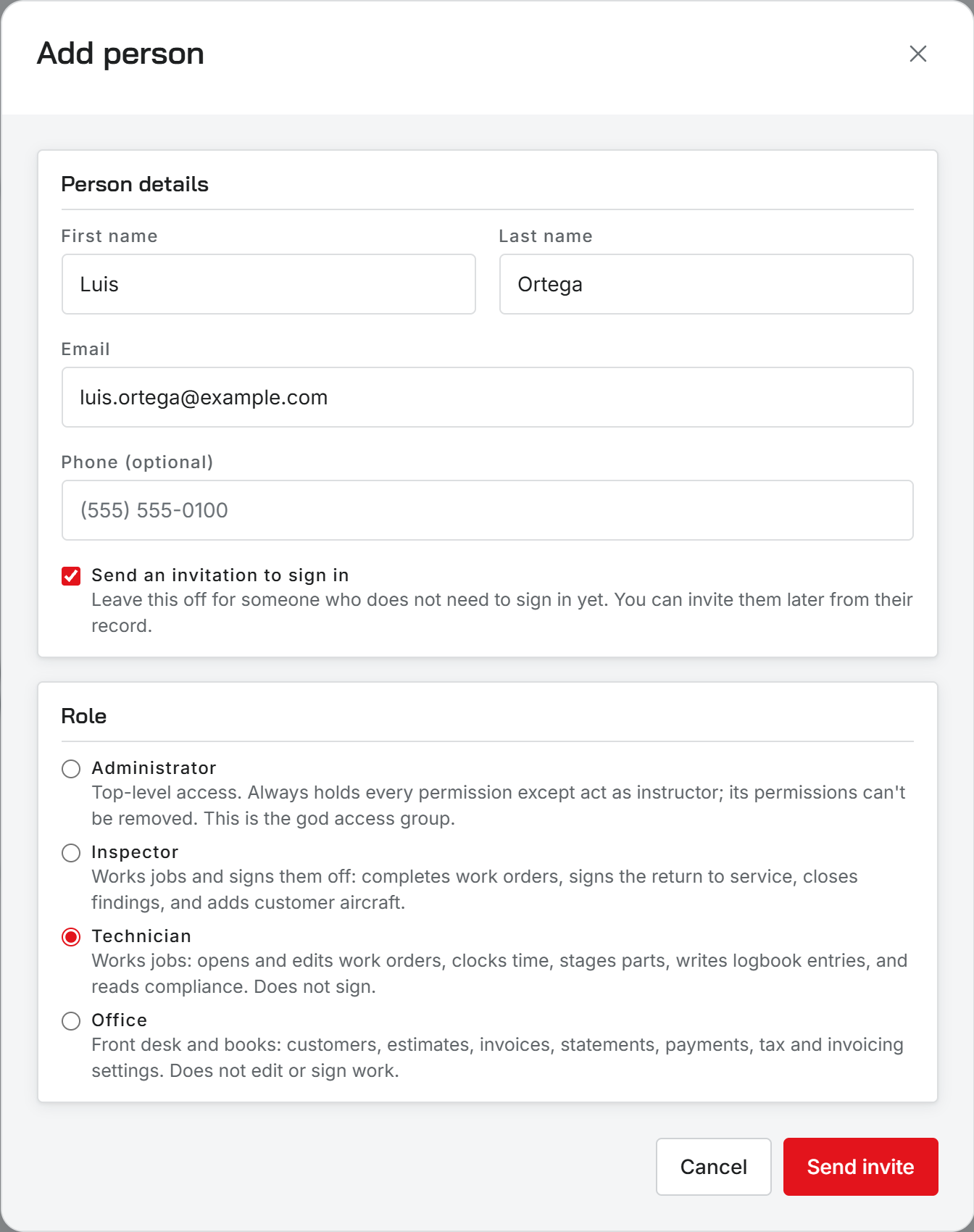
You can also hide hourly rates and labor dollars from technicians, and limit which work orders they see.
Certificates and rates
Open a person from the Users tab to see their Profile, Certificate, Labor rate, and Work. The Certificate tab holds the certificate type (A&P or Repairman), the number, and whether they hold inspection authorization. That certificate prints on the return-to-service statement when they sign.
A labor rate set on the person wins over the shop’s default rate when their clock stops.
Sign off and complete a work order
Was this page helpful?
Can’t find what you need? Contact us - a real person reads every message.