

Staff and roles
Your signature PIN
Your signature PIN is what signs a return to service or a logbook entry as you. Anyone who signs off work needs one before their first sign-off.
Setting your PIN
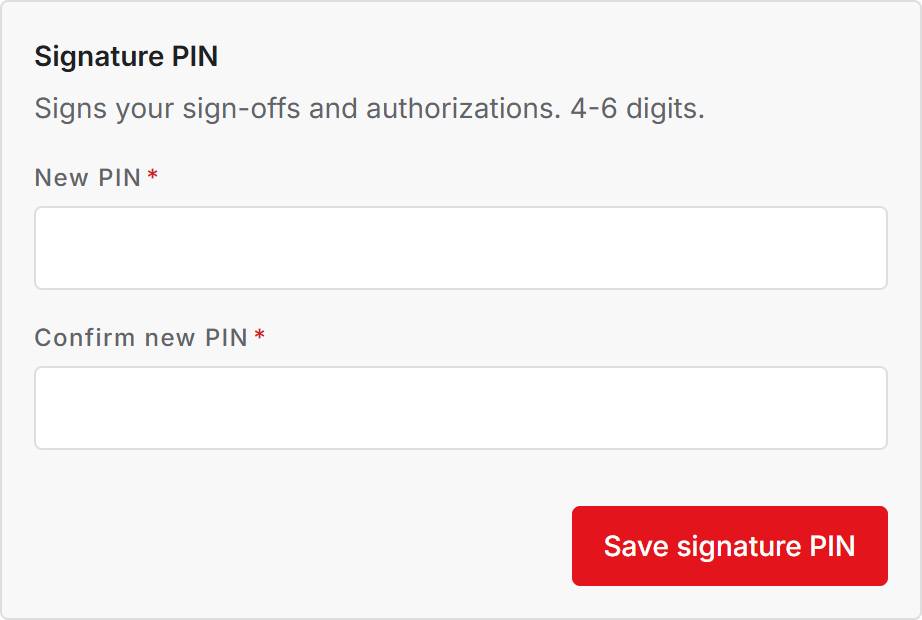
Open the menu under your name at the top of the screen, choose My account, then the Security tab. Under Signature PIN, enter a new PIN twice and choose Save signature PIN.
A PIN is 4 to 6 digits. Nobody else, including an Administrator, can see it or set it for you.
Who needs one
Inspectors and Administrators, because they are the roles that sign. Trying to sign without a PIN stops with a message that you have not set one yet.
Changing it
Once you have a PIN, changing it asks for the current one first. An open session on its own is not enough, because the PIN is what signs your work.
Forgot it? Choose Confirm it's you under the PIN fields. Resyrv asks you to confirm your sign-in, then saves the new PIN without the old one.
Wrong PIN and lockout
Each wrong PIN tells you how many tries are left. After 5 wrong tries in a row, signing is locked for 15 minutes. The count resets when you enter the right PIN.
The lockout covers changing the PIN with your current one, too. If you are locked out and need to sign now, use Confirm it's you to set a new PIN.
Was this page helpful?
Can’t find what you need? Contact us - a real person reads every message.