

Parts and vendors
Receiving stock, counts, and low stock
On-hand quantity only changes three ways: you receive stock, you count the shelf, or a job that used the part is completed. It never changes because someone saved the part form.
The starting quantity
When you first add a part you can type its Qty on hand. After that the box is locked on the part form, and the quantity moves only through Receive / count and completed jobs. This is on purpose: a form left open on someone's screen cannot overwrite a count that changed while it was open.
Receiving a shipment or counting the shelf
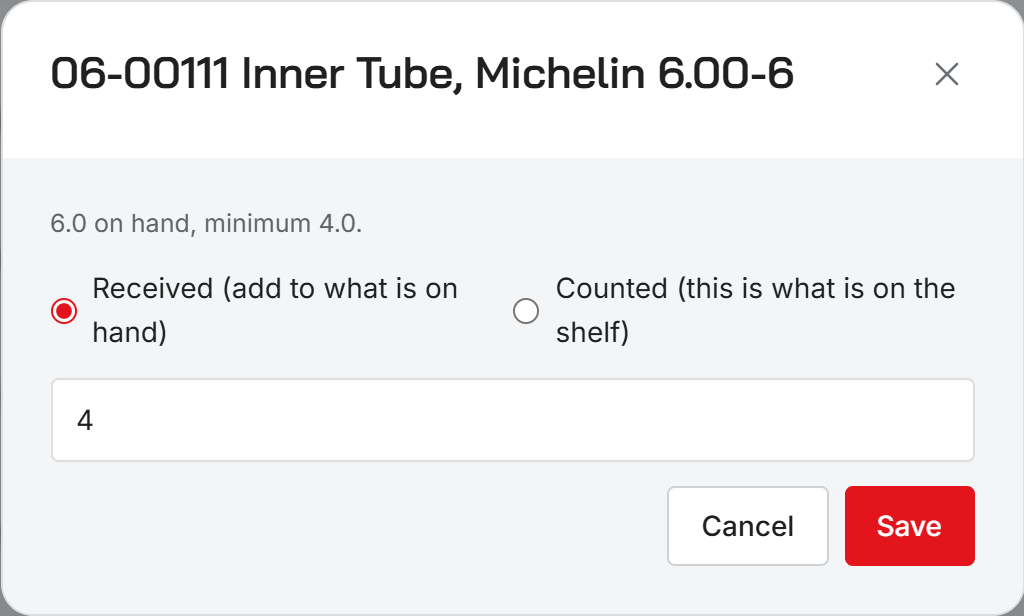
On the Parts page, open the row menu for the part and choose Receive / count. The window shows what is on hand now and the minimum. Pick one:
- Received adds the number you type to what is already on hand. Use it when a box arrives.
- Counted replaces the on-hand number with what you type. Use it after a physical count.
Type the quantity and choose Save.
What happens when a job is completed
When a work order is completed, each parts line whose part number matches a part in your catalog takes its quantity off that part's stock. The match ignores upper and lower case. A line whose part number is not in the catalog draws nothing down.
Stock never goes below zero. If a job uses more than the catalog says you have, the count stops at zero and the job still completes. The catalog is bookkeeping, not a reservation, so staging a part on an open job does not hold it.
A part with no on-hand quantity at all is not tracked, and completing a job leaves it alone. Give it a count with Receive / count to start tracking it.
Resyrv does not keep a history of each stock movement. You see the current count, not who took what.
Low stock
Set Min stock (flags low) on a part. Once its on-hand quantity reaches that number, the Parts list marks the row Low and the page heading shows how many parts are low. The Parts entry in the sidebar carries a count of parts that have dropped below their minimum.
To be told about it rather than notice it, set up an automation with the trigger A part drops below its minimum. It notifies the people who get maintenance alerts. It fires once for each new low count, not every hour.
Was this page helpful?
Can’t find what you need? Contact us - a real person reads every message.