

Work orders
Sign off and complete a work order
Complete & sign closes the job, writes the return to service, and posts the charges. Only someone with sign-off rights sees the button, which by default means Inspector or Administrator.
The four steps
- Completion: the date and the Hobbs and tach at completion. Twins get a second tach.
- Return to service: the logbook entry, prefilled from the maintenance release you wrote when you opened the job.
- Finance: the parts and labor as they will bill, read-only here. Choose whether to roll linked compliance items forward and resolve linked squawks, and whether to bill the time on the work timer as labor.
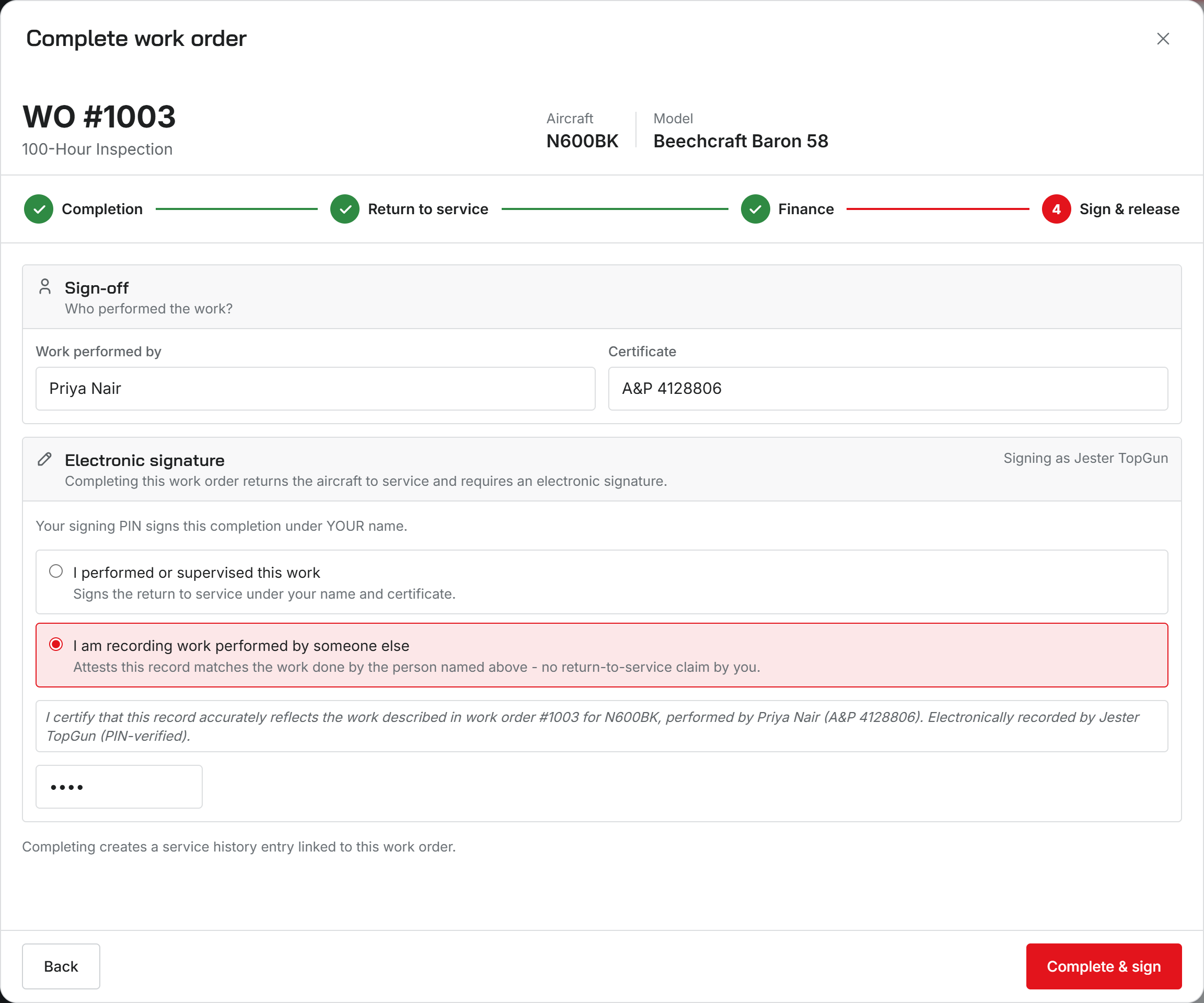
- Sign & release: who performed the work, their certificate, and your electronic signature.
Your signature PIN
Signing takes a 4 to 6 digit PIN that belongs to you, not the shop. The first time you sign, the wizard asks you to set one and confirm it, then signs with it.
Five wrong PINs in a row lock signing for 15 minutes.
To change your PIN later, open My settings from your user menu, go to Security, and find the Signature PIN card. It asks for your current PIN first. If you have forgotten it, Forgot your PIN? lets you confirm it is you with your sign-in instead. A wrong current PIN counts toward the same lockout.
Performed by
Pick the person who did the work from your staff, or Other (outside mechanic / shop). Then say whether you performed or supervised the work yourself, or are recording work someone else performed. Signing as the performer needs a mechanic certificate number.
Meter readings
A higher Hobbs or tach reading moves the aircraft’s meter forward. A lower one does not. It stays on the work order as entered and the aircraft keeps its current reading.
What completing does
- Adds a service history entry to the aircraft, linked to this job.
- Creates a draft logbook entry from the return-to-service text, for signing in the aircraft’s logbook.
- Posts the charges, ready to bill.
- Rolls compliance items forward and resolves squawks, if you ticked those boxes.
- Lifts the out-of-service hold and stops every running timer.
- Emails the customer, if Email when a job is completed is on under Shop settings, Emails.
What stops a sign-off
- A procedure on the job has steps nobody has worked, or findings still open.
- The job is waiting on the customer to approve its estimate.
- The job is not active.
Was this page helpful?
Can’t find what you need? Contact us - a real person reads every message.