

Customers
The customer link
Each customer has one link of their own. It opens a page for your shop where they can report a problem, pay what they owe, and see their estimates. It never asks them to sign in.
Getting it to the customer
On Customers, open a customer’s row menu, or their profile, and choose Copy report link. Paste it into a text or email.
Invoice emails and payment reminders also carry a View your account button that opens the same page.
The link does not expire. It works for as long as the customer is on your list.
What the customer can do there
- Invoices to pay: each open invoice with its due date and what it covers. Pay online appears when your shop takes online payments. Download PDF is always there.
- Paid invoices: their history, with older ones a click away.
- Estimates: every estimate you have sent them, with its status. An open one has Review and answer.
- Report a problem: pick the aircraft, say what is wrong, add details and up to 5 photos, and click Send to the shop.
- Your requests: every problem they have reported and where it stands, from received through fixed or declined.
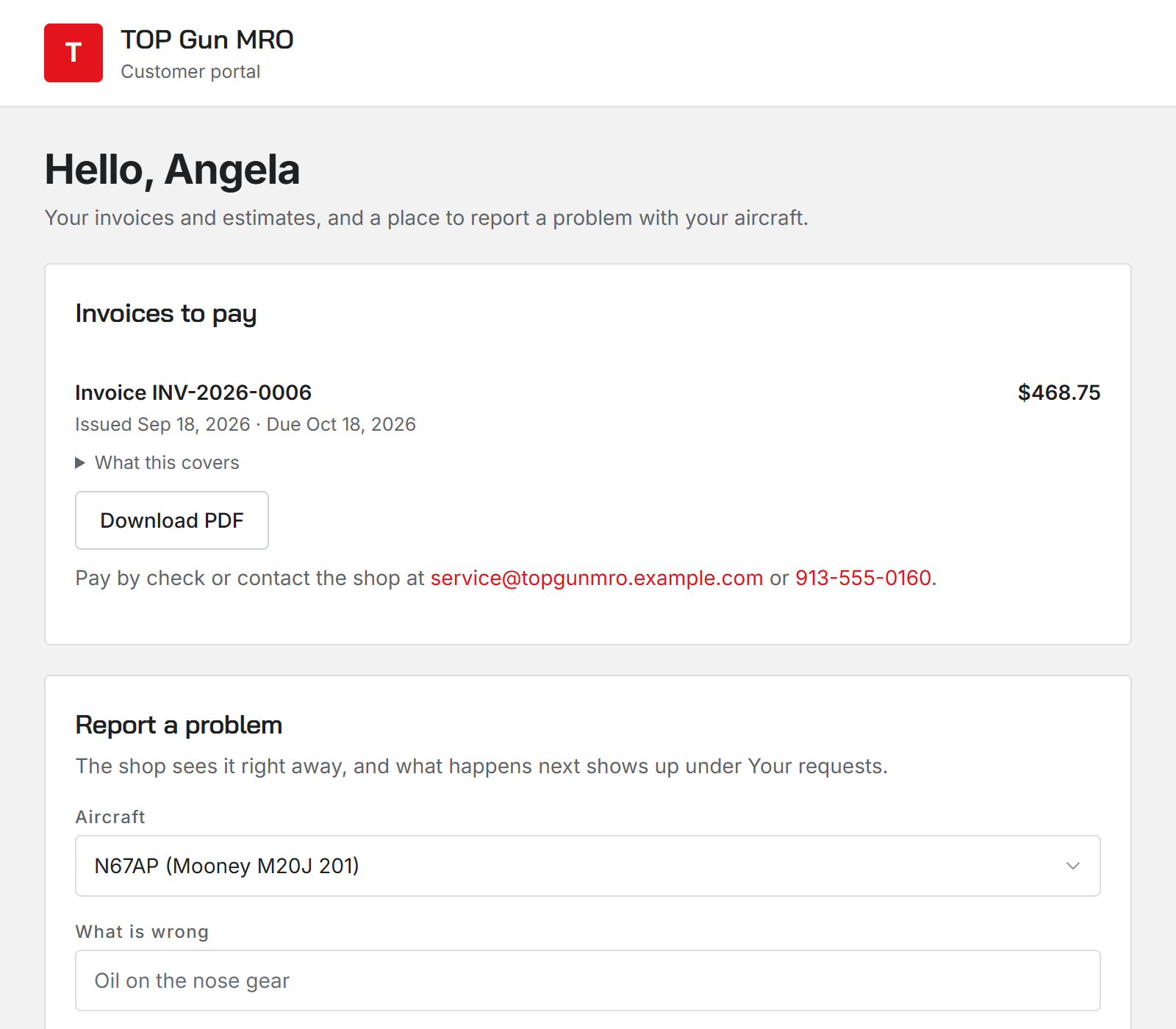
A customer can only report a problem on an aircraft that is on their record. If none is, the page asks them to have you add it first.
Reset a link
If a link reached the wrong person, open the customer and click Reset report link, then Reset link. The old link stops working at once. Send the customer the new one.
Settings
Shop settings, Customer link, controls the page.
- Take requests online: with it off, the link still shows invoices and estimates, but in place of the report form it says your shop is not taking requests online.
- Intro: what the customer reads at the top, like what to expect after they send a request.
- Contact: how to reach the shop instead.
- Preview opens the page as a customer sees it, in a new tab.
Changes save as you make them.
How the customer approves an estimate
Was this page helpful?
Can’t find what you need? Contact us - a real person reads every message.