

Staff and roles
Changing roles, teams, and removing staff
Once someone is on your Staff page, this is how you change what they can do, group them, and take them off when they leave.
Adding a person and picking their first role is covered in Invite your staff and pick roles.
Invite your staff and pick roles
Changing a role
Open the person from Staff and use the Access tab. Only an Administrator can change a role.
A person can hold more than one role, and then has everything each role allows.
Teams
The Teams tab on Staff holds named teams, such as Avionics or Engines. Put a person on a team from the Team column on the Users tab. A person is on one team at most.
Scheduling capacity
Working days, Hours per working day and Schedulable are recorded per person, with shop defaults on the Users tab. Resyrv MRO does not use them for anything yet; they are there so your shop's capacity is on file when workload planning arrives.
Removing someone who has left
Open the person from Staff and choose Remove from shop, then confirm. They lose access to your shop at once and drop off the Staff list.
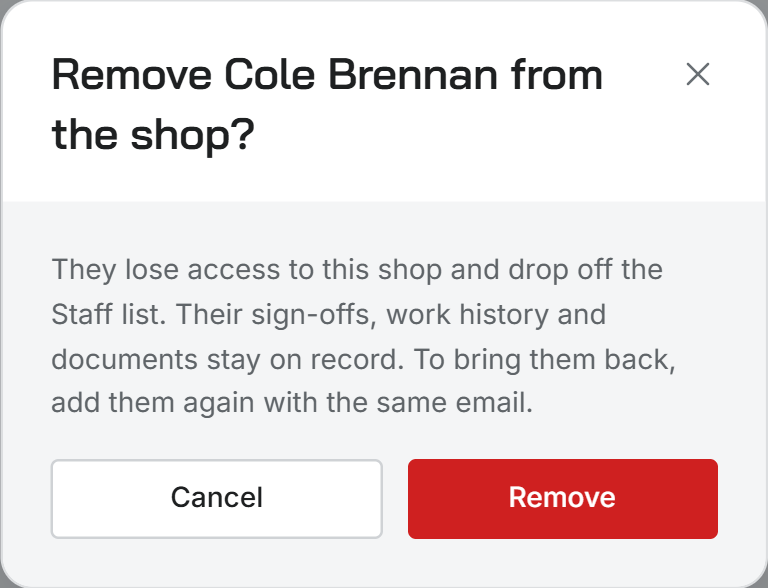
Their sign-offs, work history and documents stay on record. To bring them back, add them again with the same email.
Administrators and Office staff can remove people. Nobody can remove the shop's owner, and you cannot remove yourself.
Was this page helpful?
Can’t find what you need? Contact us - a real person reads every message.