

Parts and vendors
Your parts catalog
The Parts page is your shop's catalog. A part you add here fills in by part number on any work order or estimate line, with its price already worked out.
Adding a part
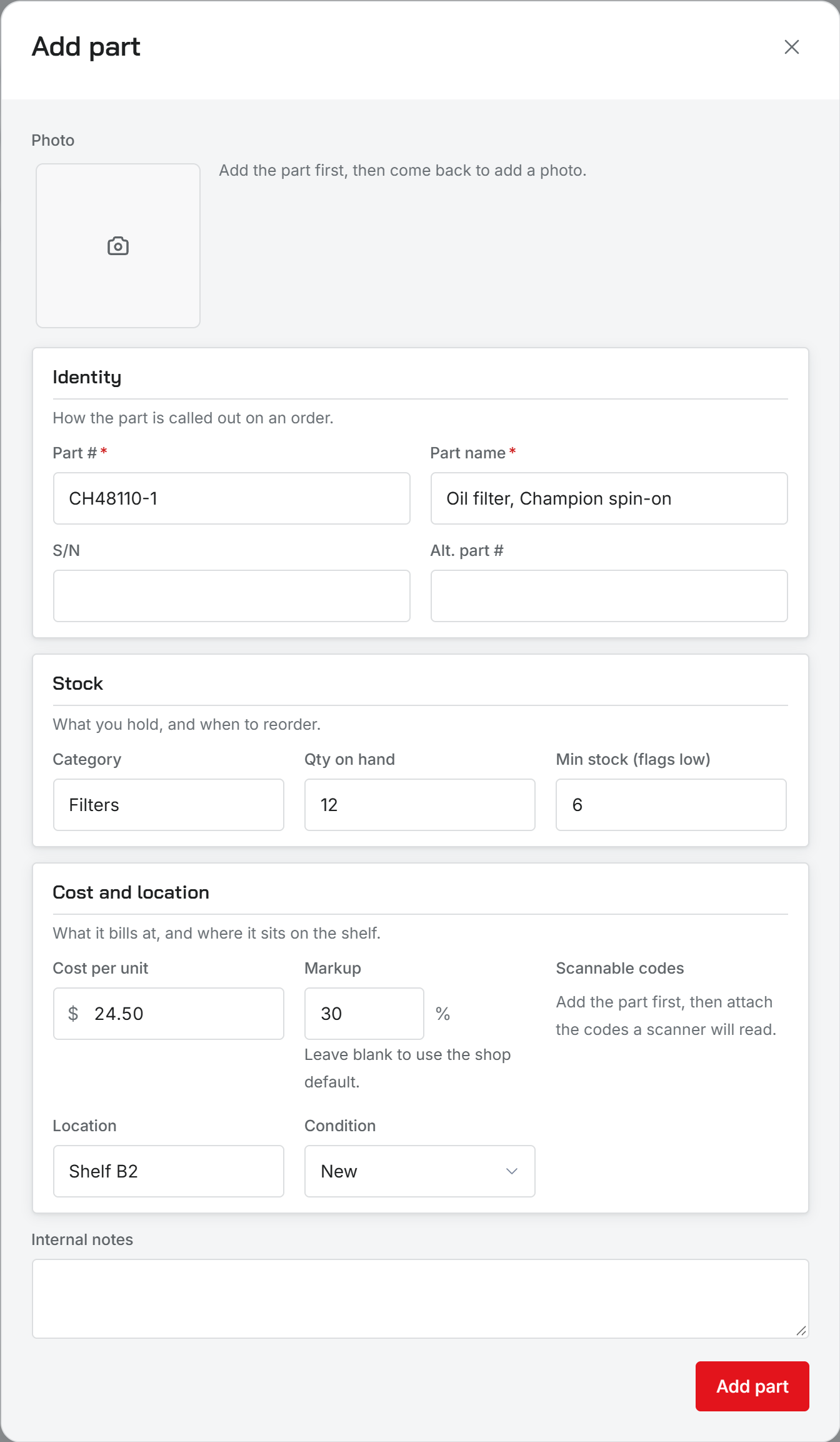
Open Parts in the sidebar and choose Add part. Part # and Part name are required. Everything else is optional: S/N, Alt. part #, a category, how many you have on hand, the minimum you want to keep, the cost, a markup, where it sits on the shelf, its condition, and internal notes.
Part numbers are unique in your catalog, ignoring upper and lower case. If you try to add a part number that is already there, Resyrv stops you and tells you which one. Keep one row per part number, because stock counts and scans match on it.
You can add a photo of the part once it is saved. JPEG, PNG or WebP, up to 5 MB.
Cost, markup, and what the customer pays
Cost per unit is what the part costs the shop. The Parts page always shows and edits that cost, never the marked-up price.
The price on a work order line is the cost plus markup, rounded to the cent. A part uses its own Markup if you fill one in. Leave it blank and the part takes the shop default from Parts markup in Shop settings, under Rates and fees. If both are blank, the part bills at cost.
Markup is applied once, when the part goes on a job. Changing the cost or the markup later does not reprice lines that are already on a work order.
Condition and location
Condition is the tag you would write on the part: New, Serviceable, Overhauled, Repaired, Inspected, As removed, Unserviceable, or Scrap. As removed shows in amber on the list, and Unserviceable and Scrap show in red, so they stand out before anyone pulls them.
Location is free text, such as Shelf B2. It prints on part labels and is what a bin label is made from.
Finding parts
Search matches part number, name, alternate part number, category and location. Once you have used categories, a row of category filters appears above the list. Click a column heading to sort by it.
Who can change the catalog
Administrators, Inspectors and Technicians can add, edit and delete parts. Office staff can see the catalog but not change it.
Deleting a part does not change work orders that already used it. Their lines keep the part number, name and price they were given.
Receiving stock, counts, and low stock
Scanning parts and printing labels
Was this page helpful?
Can’t find what you need? Contact us - a real person reads every message.