

Getting Started
Aircraft Groups
Most operators already talk about their fleet in sets: the trainers, the Cherokees, the complex ships. Aircraft groups make those sets real, so the schedule builder books from the right airplanes and a crowded calendar can be narrowed to the ones you care about.
Groups live under Aircraft, then Groups. Everyone who can see the fleet can see the page; creating and editing groups takes the aircraft management permission.
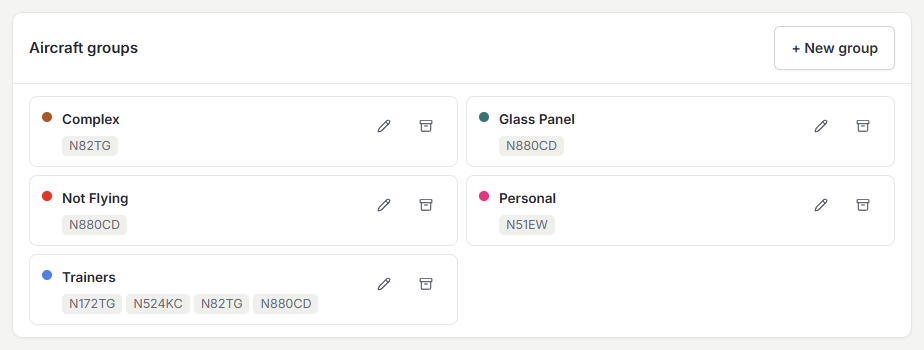
Creating a group
Give the group a name and a color, then pick its aircraft from your fleet. Change the list whenever you like.
An aircraft can belong to as many groups as it needs to. "Trainers" can hold all ten airplanes while "C172 Fleet" and "Cherokee Fleet" hold five each, so one syllabus can serve a mixed fleet while a particular student stays on one type.
Steering which aircraft a lesson books
A group can be set in three places, and the most specific one wins:
- On a lesson template - this one lesson needs a particular set of airplanes.
- On a student’s enrollment - this student should stay on these tails.
- On the syllabus - the default for every lesson in the course.

If none of them names a group, the schedule builder does what it always did and takes any suitable airplane free at that location. Every picker offers "(any aircraft)" as the empty choice, and a group that’s later archived falls back the same way rather than breaking a syllabus.
Same airplane, or any airplane
Builder Settings carries one more choice: take any free aircraft from the group, or prefer the airplane the student last flew. The preference is soft. If that tail is already booked, the builder falls back to the rest of the group rather than dropping the lesson. Students who benefit from staying on one panel get continuity; the schedule still fills.
Filtering the schedule
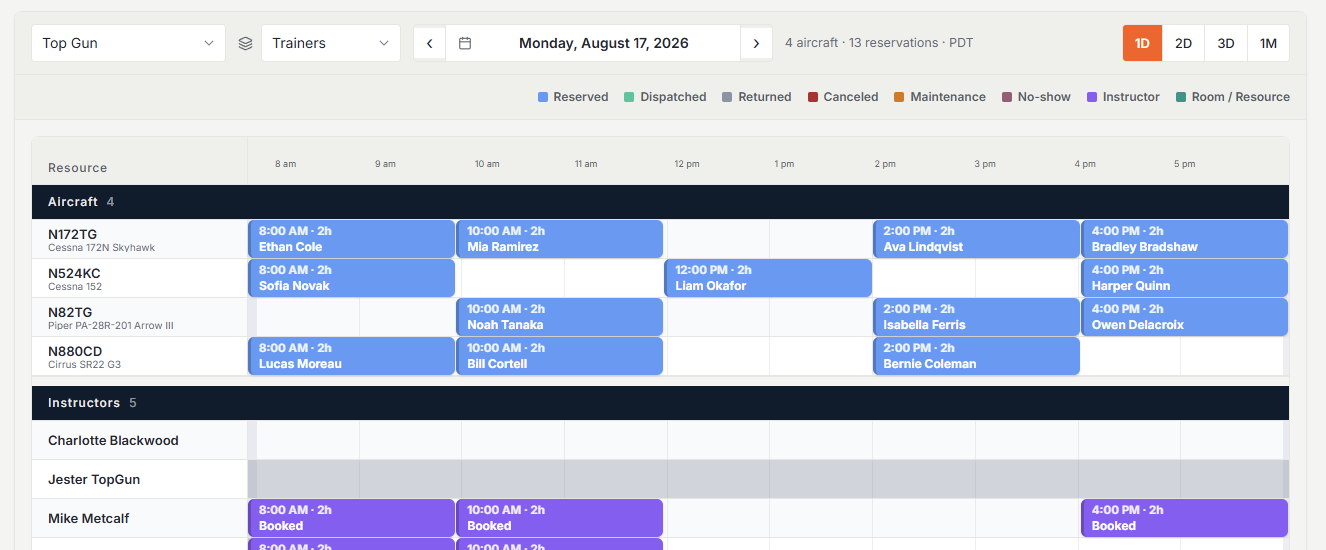
Groups give the calendar a filter for free. Pick a group on the schedule, on a computer or a phone, and the view narrows to that group’s tails, however busy the day is.
Archiving and restoring
Retiring a group archives it. It drops out of the pickers and the filter, anything pointed at it quietly falls back, and nothing is lost. Show archived on the Groups page lists what you retired and brings any of them back with its aircraft intact.
Was this page helpful?
Can’t find what you need? Contact us - a real person reads every message.