

Billing & Cost Sharing
Your Storefront
The storefront is your organization’s public shop, a page you design with product pages, a cart, and card checkout, so anyone, member or not, can buy an experience or a product. It all lives in the Storefront section of the sidebar: Sales, Items, Page design, and Storefront settings.
Items
Items lists your products and services, each with a name, price, description, and a photo front and center. The New item drawer starts with the photo, because that’s what sells on the page. Flip between card and list views, and edit the everyday things right in the row: click a price to change it, switch visibility between internal and public, archive with a dropdown. An item with sales history never deletes outright; it archives, so past sales keep their reference.
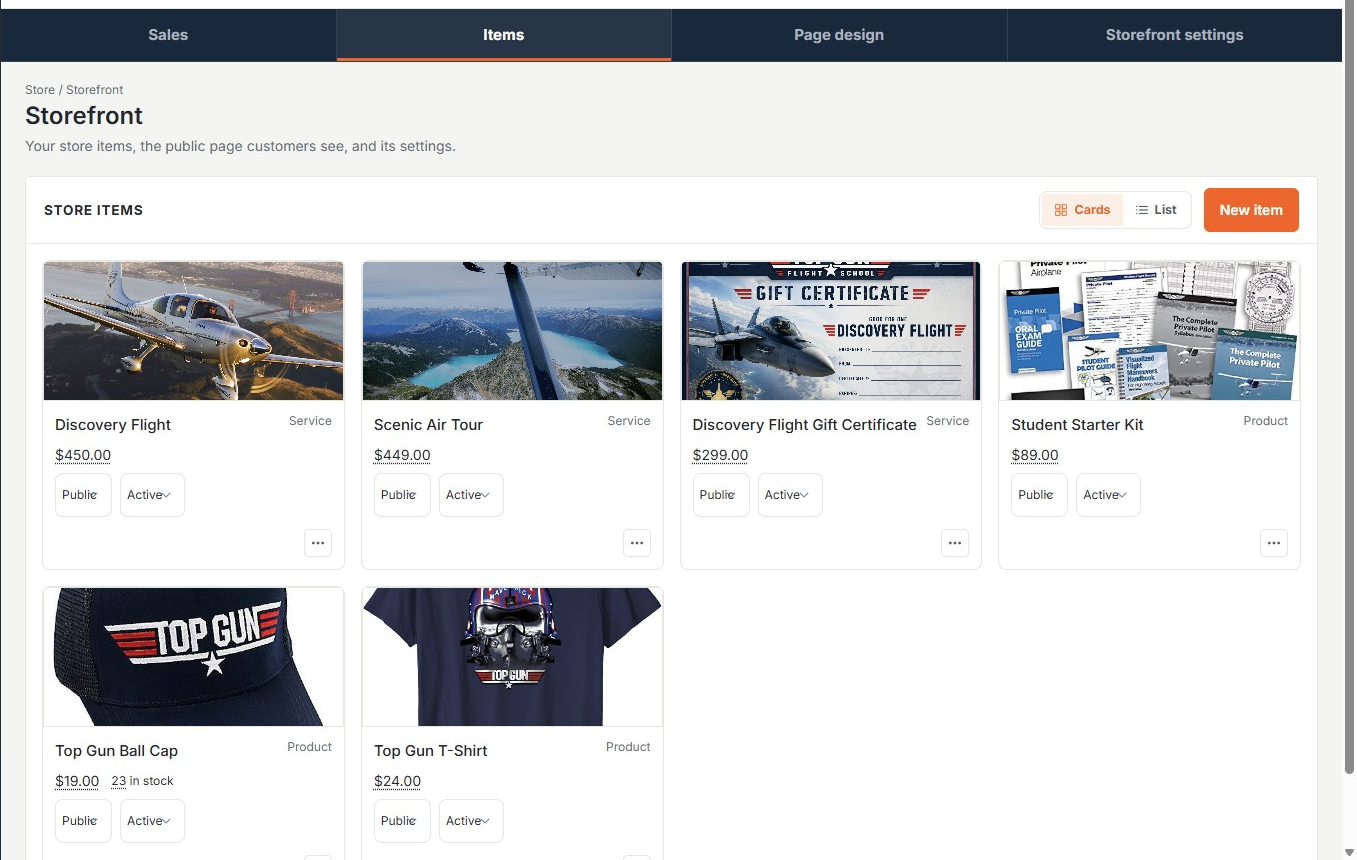
Every public, active item also has a Copy link action, a direct link that opens your shop with that item already in checkout. Text or email it to a customer and they can pay by card from that link.
Design your page
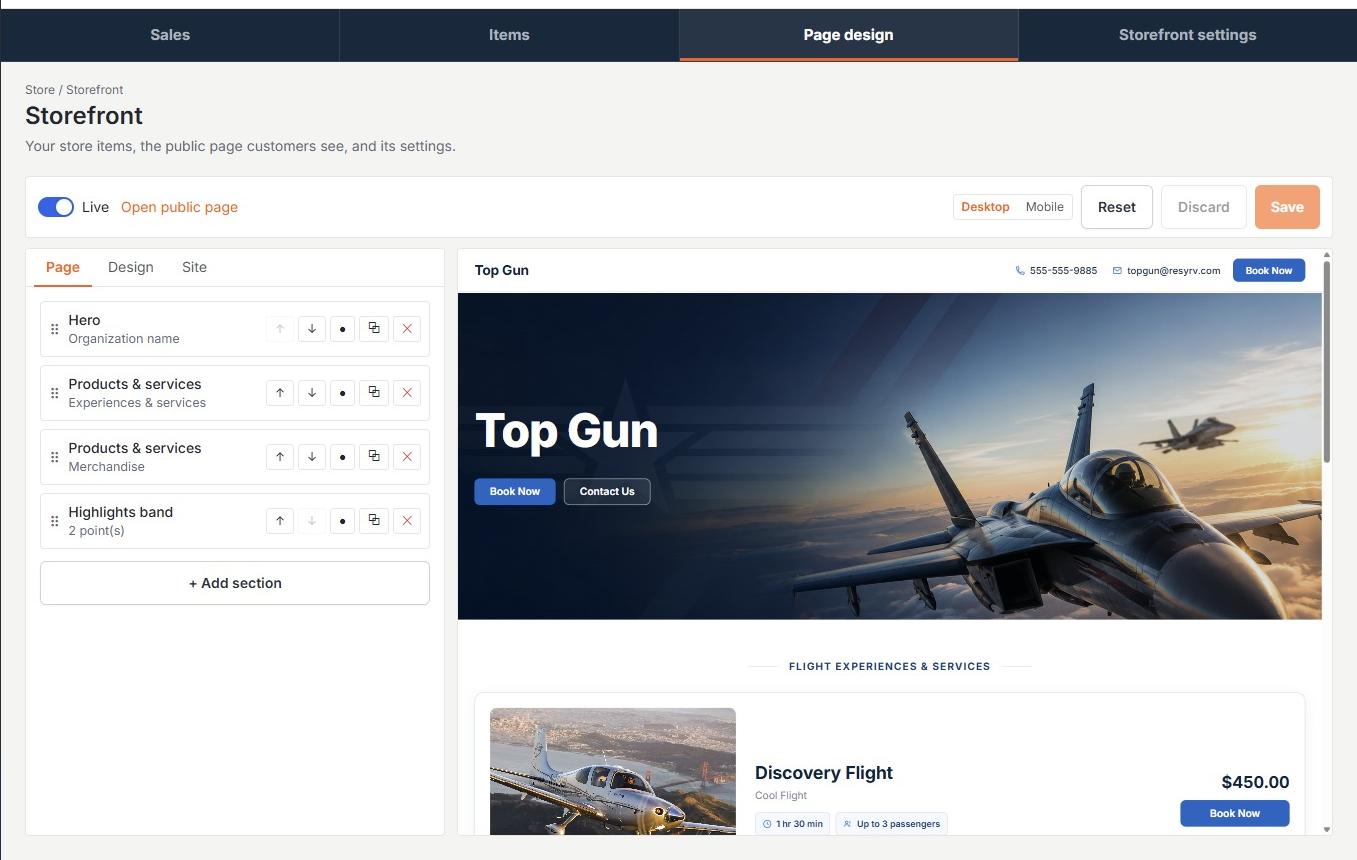
Page design is a visual builder with a live preview. Stack the sections you want (hero, products, photo gallery, testimonials, FAQ, your fleet, hours and location, a closing call to action), then set colors, fonts, corner style, and your header and footer once for the whole site. Nothing publishes until you hit Save, and the Live toggle takes the whole page on and off the air. Search-engine indexing is off unless you switch it on, so the page travels only where you share it.
What buyers see
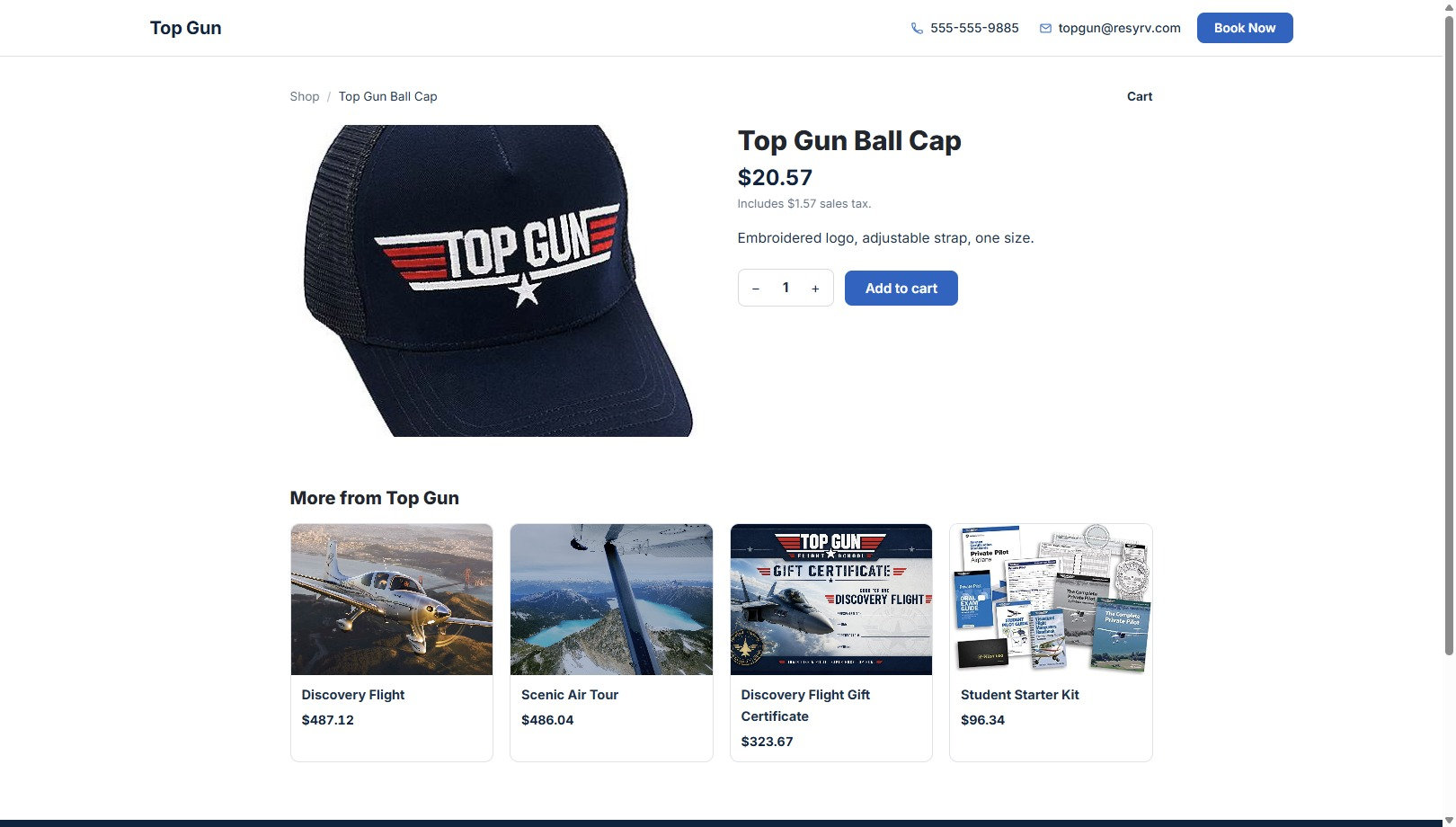
Your shop has its own link and shows your branding from header to footer. Every item gets its own product page (big photo, price with tax shown, a quantity picker), and products go into a cart so a visitor can buy the hat and the flight in one order. Checkout takes contact details and a card, in your colors, with no Resyrv account needed. The buyer gets a receipt by email and your staff get a sale notification.

Until a payment processor is connected (Stripe or Authorize.net, under Billing then Payments), buy buttons become contact buttons instead, opening a pre-written email to your contact address with the item and price already filled in. The Sales page reminds you with a banner until checkout is live.
Stock tracking
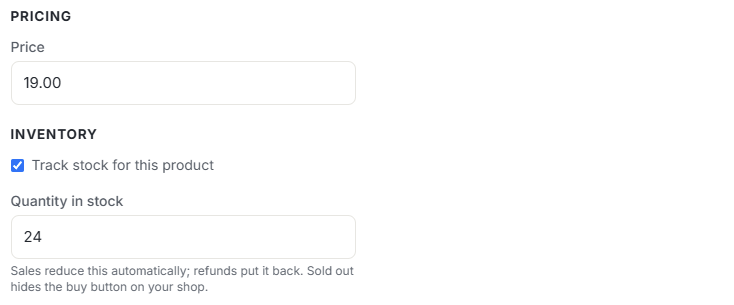
For physical products, tick “Track stock for this product” in the item drawer and give it a count. Sales reduce it automatically and refunds put it back. The page shows “Only 3 left in stock” when it runs low, a disabled Out of stock button at zero, and a polite refusal if someone with a stale page tries to buy more than remains. Untracked products sell without limit.
Selling at the desk
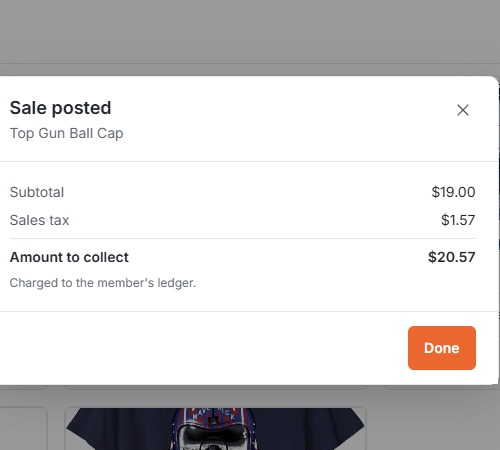
Staff can sell without the public page at all. The Sell action on any item opens a sale that posts to a member’s account, with multiple lines, quantities, an optional price override, and a confirmation showing exactly what to collect, tax included. Desk sales show up in the sales list as member sales and can be reversed if posted in error.
Watching sales
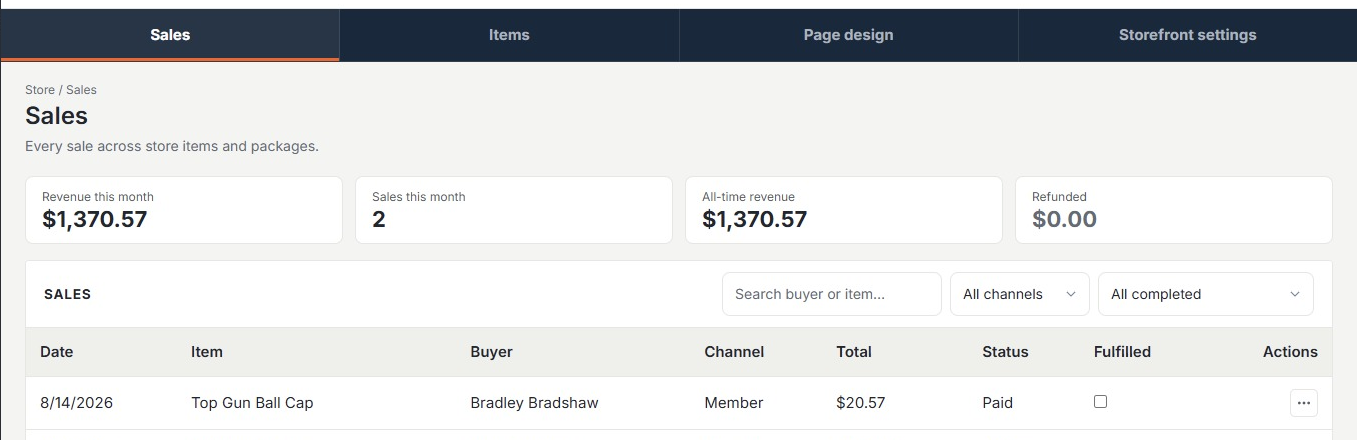
The Sales page shows revenue this month, sales this month, all-time revenue, and refunds, above a list of every order, with online, member, and package sales together. Search by buyer or item, tick orders fulfilled as you hand them over, and refund a paid online order right from the row (the full amount goes back through the processor). Reversing a member sale voids its charges from the member’s account instead.
Was this page helpful?
Can’t find what you need? Contact us - a real person reads every message.