

Documents & Communication
Documents
The Documents workspace is the filing cabinet for the whole operation: organization paperwork, aircraft records, and member documents. Resyrv flags each one as its expiry date approaches.
Three kinds of documents
- Organization documents - operations manuals, safety policies, insurance certificates. Visible to the whole group, or targeted to a single location in a multi-base operation.
- Aircraft documents - registration, airworthiness, weight and balance, insurance. They live with the airplane, on its own page and in the workspace.
- Member documents - each member’s own uploads: certificate scans, medical copies, renter insurance. Members manage theirs from their personal documents page.
Each of the three is its own entry under Documents in the sidebar, so you can jump straight to the drawer you want. The workspace itself opens on Browse, a folder view of everything you have access to.
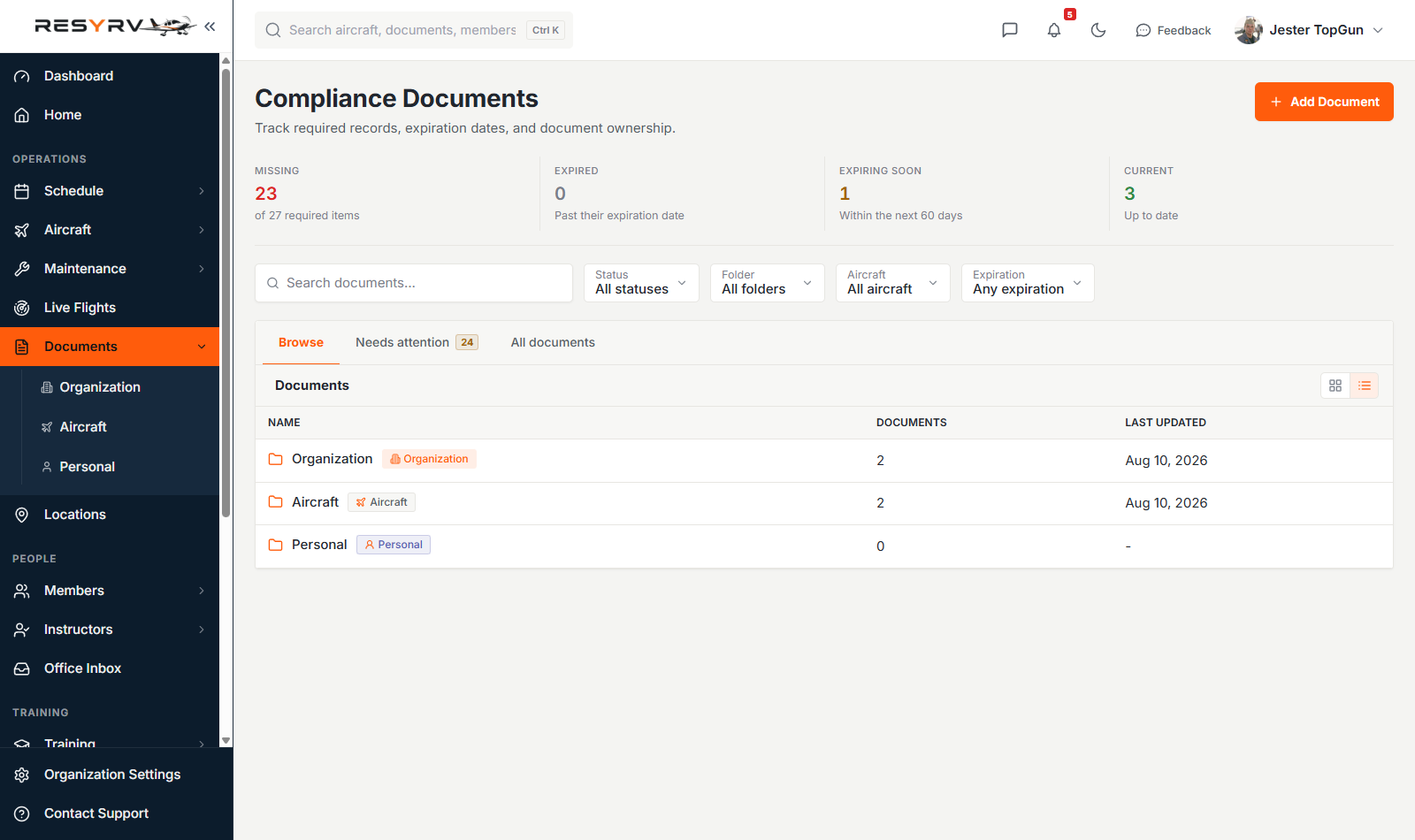
Browsing the cabinet
Browse works the way a filing cabinet does. Open Aircraft and you get a drawer per tail number; open a tail number and you get its folders - airworthiness, registration, maintenance, insurance. The breadcrumb across the top shows where you are and takes you back up a level.
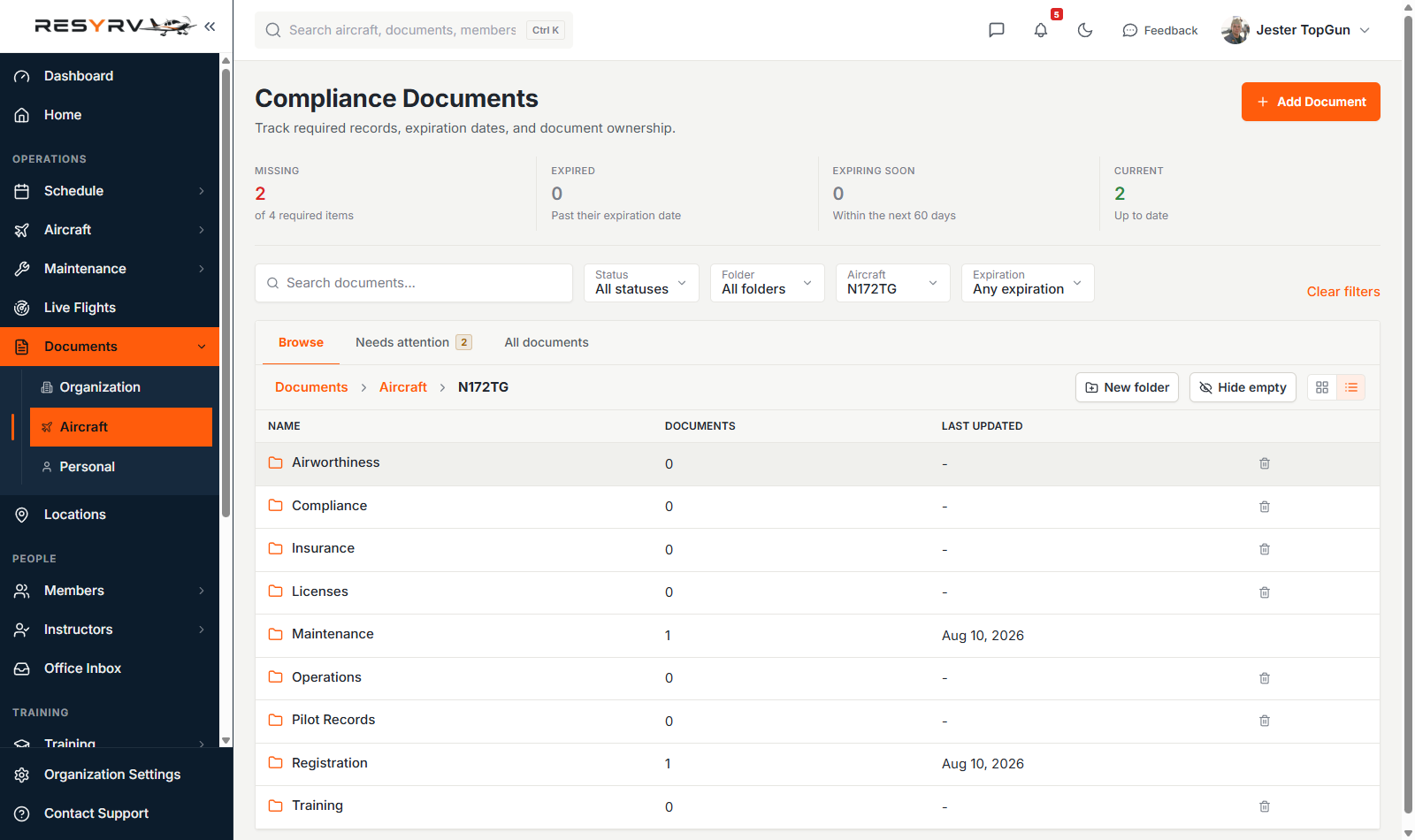
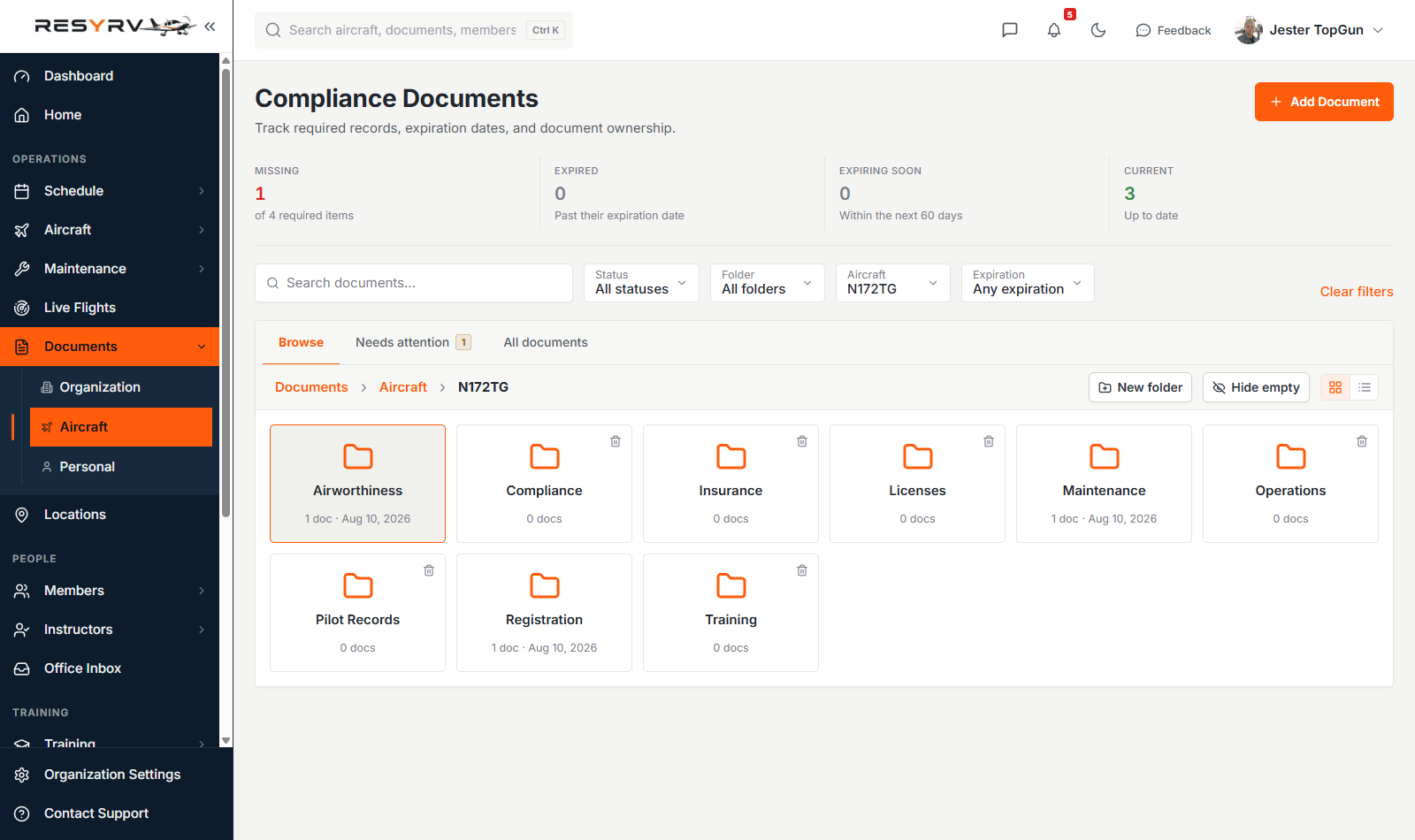
Empty folders stay visible on purpose, so filing a new document never means guessing what you called the folder last time. If the empties get in the way, Hide empty collapses the view to folders that hold something, and the switcher beside it toggles between list rows and icon tiles. Both choices stick for next time.
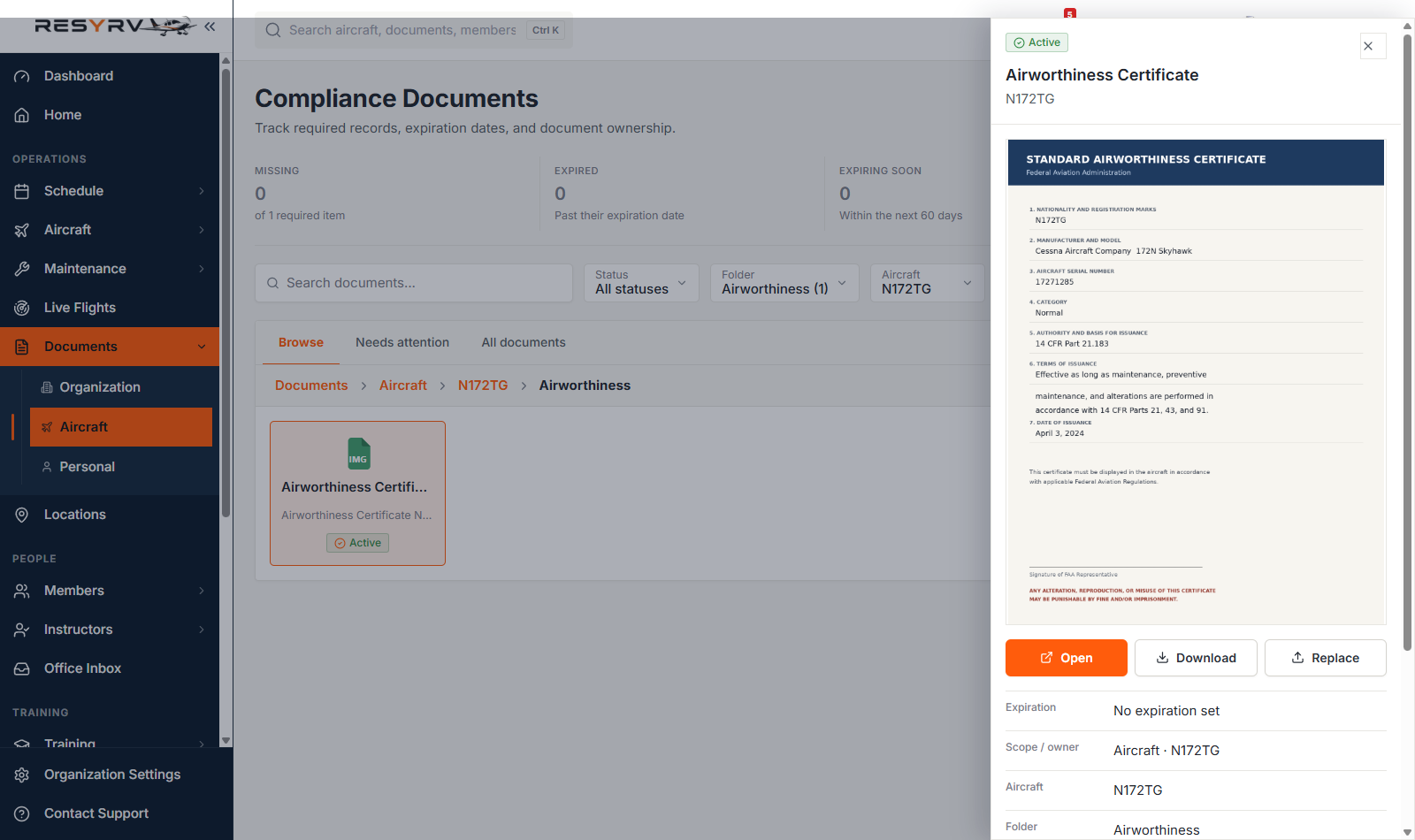
Opening a document
Clicking a document opens it beside the list. PDFs and images preview right there, so you can check a certificate without downloading it, and the buttons you get - open, download, replace, edit, delete - depend on what your role allows for that kind of document.
Uploading
Add Document is one form for all three kinds; the scope buttons at the top only offer the ones you may upload to. Name it, pick a folder, set an expiry if it has one, and choose the file.
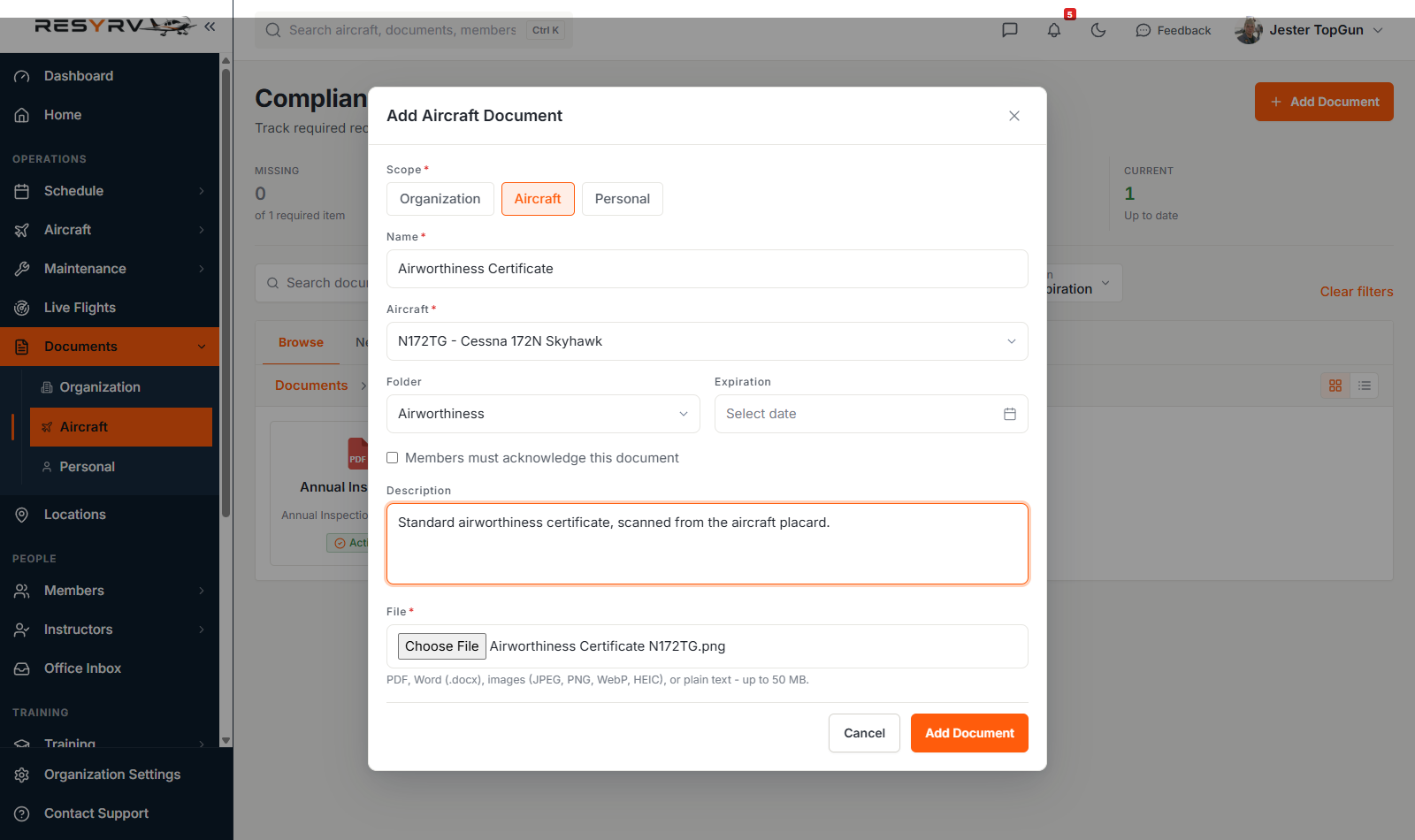
- PDFs, Word documents, images (including HEIC straight off an iPhone), and plain text, up to 50 MB - enough for a scanned POH.
- Uploads show progress and retry themselves if the connection drops. If one finally fails, your form and file are still there, so retry is one click.
- Tick “members must acknowledge” for required reading; members get a prompt and their acknowledgement is recorded.
Expiry tracking
Any document can carry an expiry date, and expiring documents surface in the workspace as the date approaches. Two months out, they’re flagged. The dated records on a pilot’s profile - medical, flight review, renter insurance and the like - go further. Members get reminder emails at set milestones before those lapse, and renewing with a new date re-arms the reminders for the next cycle.
Required documents
Your organization can define which documents it expects to have on file: an operations manual and safety policy at the organization level, registration and insurance per aircraft, or specific records per member. Anything on that list with nothing uploaded counts as missing, and Needs attention collects the missing, the expired, and the expiring in one place.
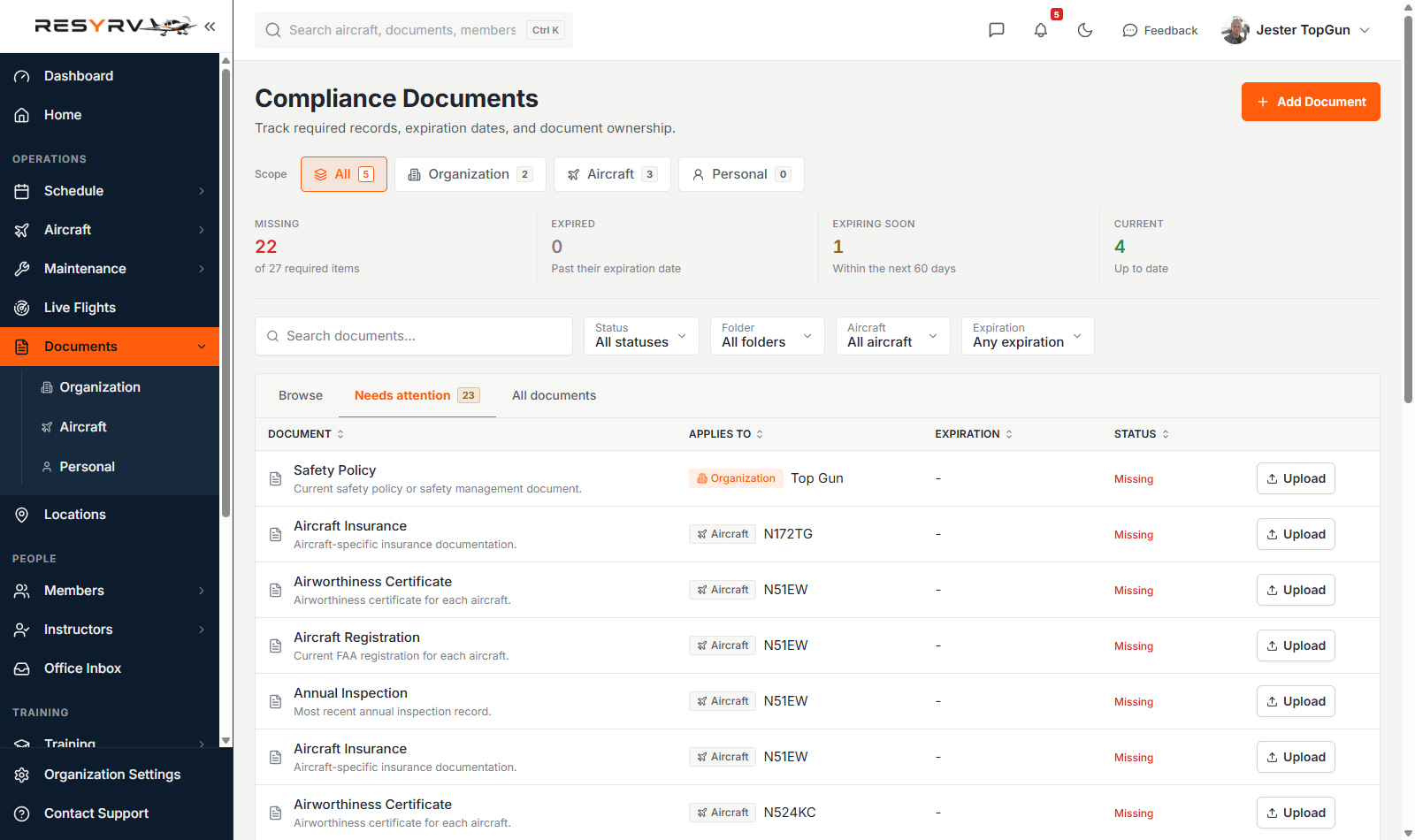
Missing records for drawers you can’t upload to are left off your list, so every to-do on it is one you can complete.
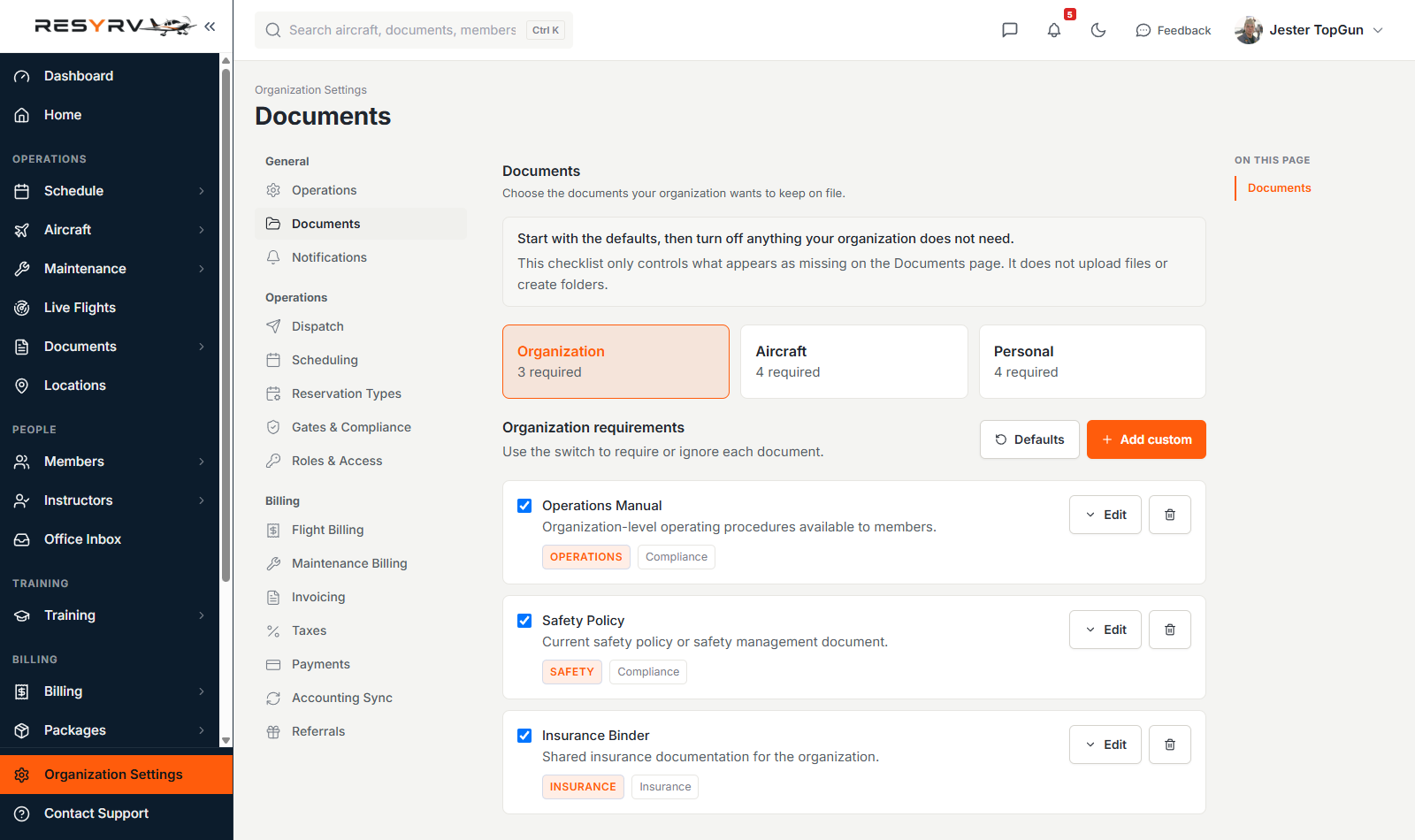
The requirement list itself lives in Settings, then Documents. It ships with the usual aviation set (operations manual, registration, annual inspection, medical, flight review), several carrying their FAR citation. Switch off anything your operation doesn’t need, or add your own.
All documents
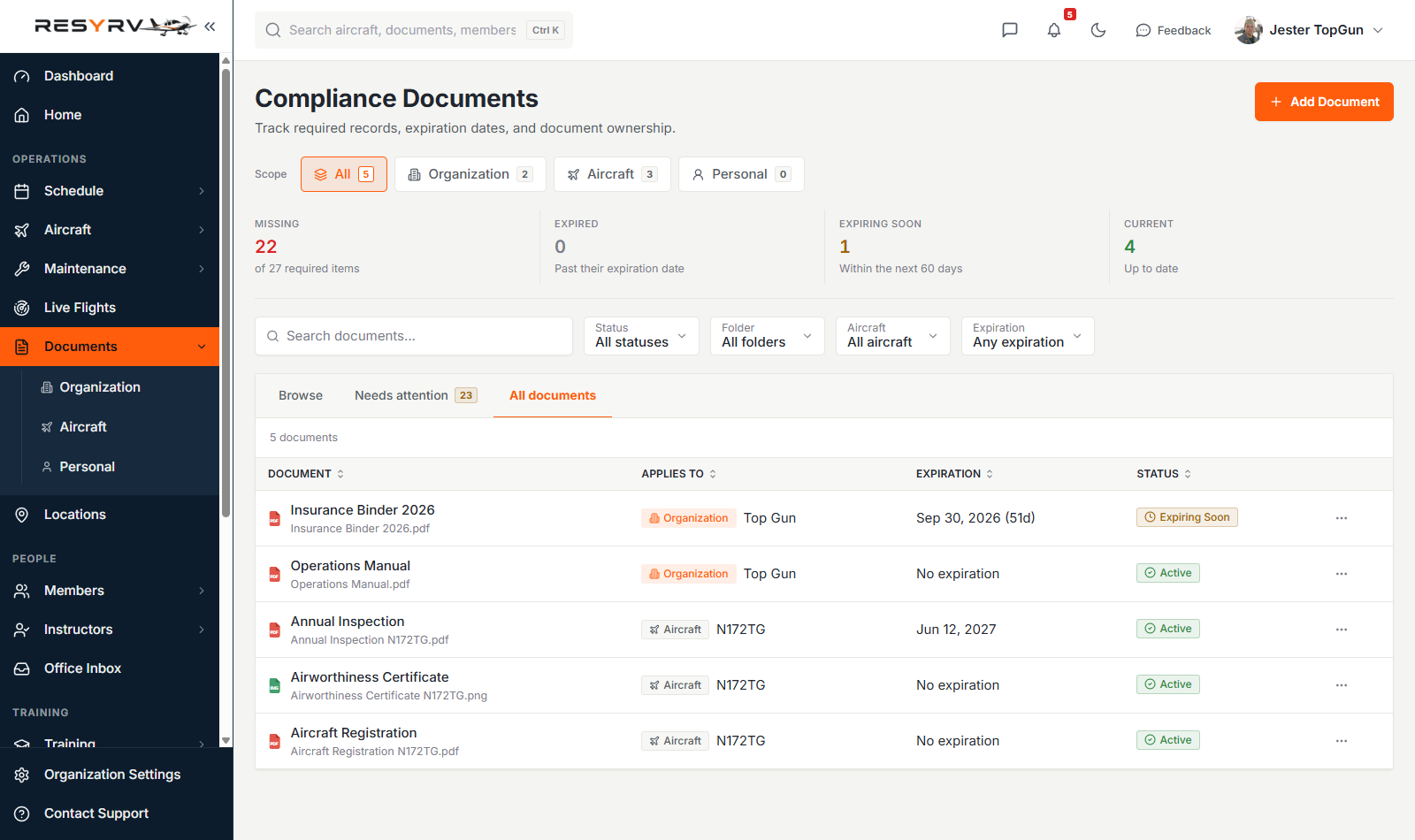
When you would rather scan one list than walk folders, All documents is the flat table: everything you can see, sortable by name, owner, expiry, or status, with file types and scopes badged. The filters above it - status, folder, aircraft, person, expiry - stay put and apply to every view.
Folders
Folders are your organization’s own list. Anyone managing organization documents can add one from Browse, or delete one that has nothing in it. A folder holding documents can’t be removed, and deleting asks you to type the name first. Everyone uploading can still type a brand-new folder name on the form.
Who sees what
Document access is permission-gated like everything else, separately for organization, aircraft, and member documents. Members always see their own files and the organization documents shared with them; seeing other members’ documents, or managing the cabinet, takes the matching permission. Organizations that restrict what basic members see can keep sensitive files admin-only.
Was this page helpful?
Can’t find what you need? Contact us - a real person reads every message.