

Training
Schedule Builder
Filling a training week by hand means holding every student’s position against every instructor’s availability and the whole fleet. The Schedule Builder does that pass for you. It proposes the lessons that fit, you review them, and one click books the ones you keep.
The builder lives in Training, on its own Schedule Builder page. Nothing it proposes exists until you commit it.
What it already knows
The builder reads what Resyrv already holds:
- Where each student is in their syllabus, and which lesson comes next.
- How far behind pace each student is, from the same forecast engine behind the Pace page.
- Each instructor’s availability windows, their time off, and their existing bookings.
- Student availability windows - the same weekly windows used for cancellation notices. A student who hasn’t set any is treated as available anytime.
- Which aircraft are free, and which ones a lesson is allowed to use.
Building a week
Pick the location, set the date range (the next seven days by default), optionally narrow to one syllabus, and click Build. The builder walks the range in half-hour steps inside your operating hours and teaching days, in that location’s local time, and places each student’s next lessons in syllabus order.
It fills to pace. A student who needs three lessons this week to stay on track gets three proposed, a student who’s already booked ahead gets fewer, and nobody exceeds the per-day and per-run limits in your settings. Lessons never run past a stage check the student hasn’t passed, though the check itself can be proposed.
Reading the proposal
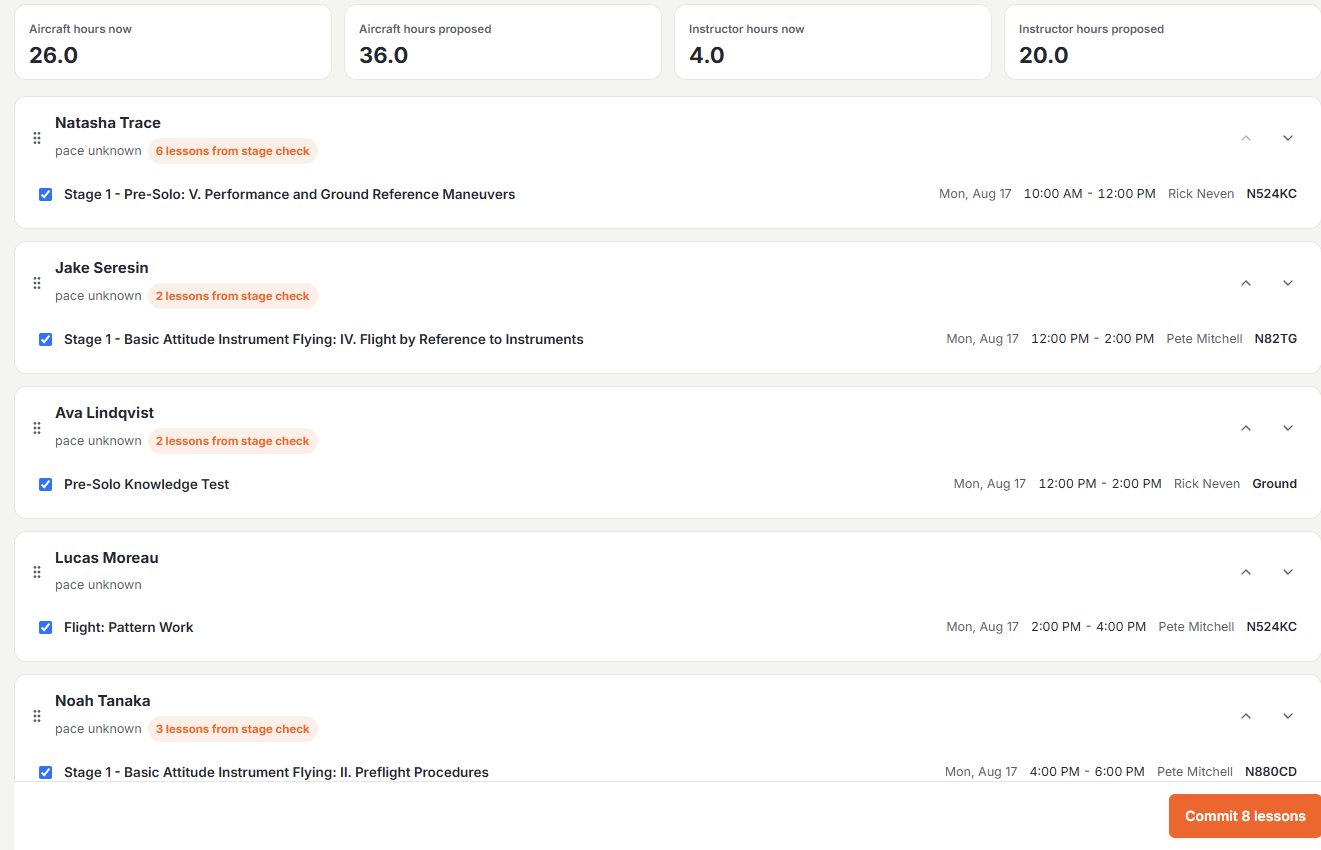
Students are listed furthest behind pace first. Each student’s row carries how far behind they are and how close they are to a stage check, with their proposed lessons underneath: the day, the time, the instructor, and the aircraft. A student without enough history to forecast reads "pace unknown", exactly as they do on the Pace page.
A lesson the builder could not place is still listed, with the reason it fell out: no overlap with the student’s availability, no instructor free at a workable time, no aircraft free at a workable time, or no open slot left in the range.
Above the list, a scorecard shows aircraft and instructor hours across the range as they stand now, and as they would stand if you committed everything.
Adjusting before you commit
Untick any row you don’t want; that changes nothing else. Dragging a student to a different position re-solves the build in your order, because moving someone up changes which slots are left for everyone below them. Nothing is booked either way until you commit.
Committing
Commit books the ticked rows. Every row is re-checked against the live calendar first (minutes may have passed since the build, and someone else may have taken a slot), so each row comes back either booked or refused with a reason. The week that fits gets booked, and you can see which rows to run again.

Committed lessons are real training bookings, identical to ones booked by hand: they hold their slot, they carry the student’s enrollment and syllabus lesson, and they show up for grading when they’re flown.
Student confirmation
By default, students are asked to confirm. Each one gets an email with their lesson, time, instructor, and aircraft, and a link to a page in the app showing the same details with a Confirm button. Until they confirm, the booking carries a "not confirmed" badge on the schedule so your staff can see what’s still outstanding at a glance. A student who can’t make it goes down the normal cancel or reschedule path from the same page.
You can turn confirmation off entirely. Bookings then commit as ordinary confirmed lessons, with no badge and no confirm link, and students still get the informational email so nobody is surprised by a lesson they didn’t know about.
When nobody confirms
You choose what an unconfirmed lesson does as it approaches: keep it on the schedule and flag it, or release the slot a set number of hours before it starts. Releasing runs through the normal cancellation path, so the freed slot feeds cancellation notices to everyone watching that aircraft.
Builder settings
The gear on the Schedule Builder page opens Builder Settings, which holds the rules the builder solves under:
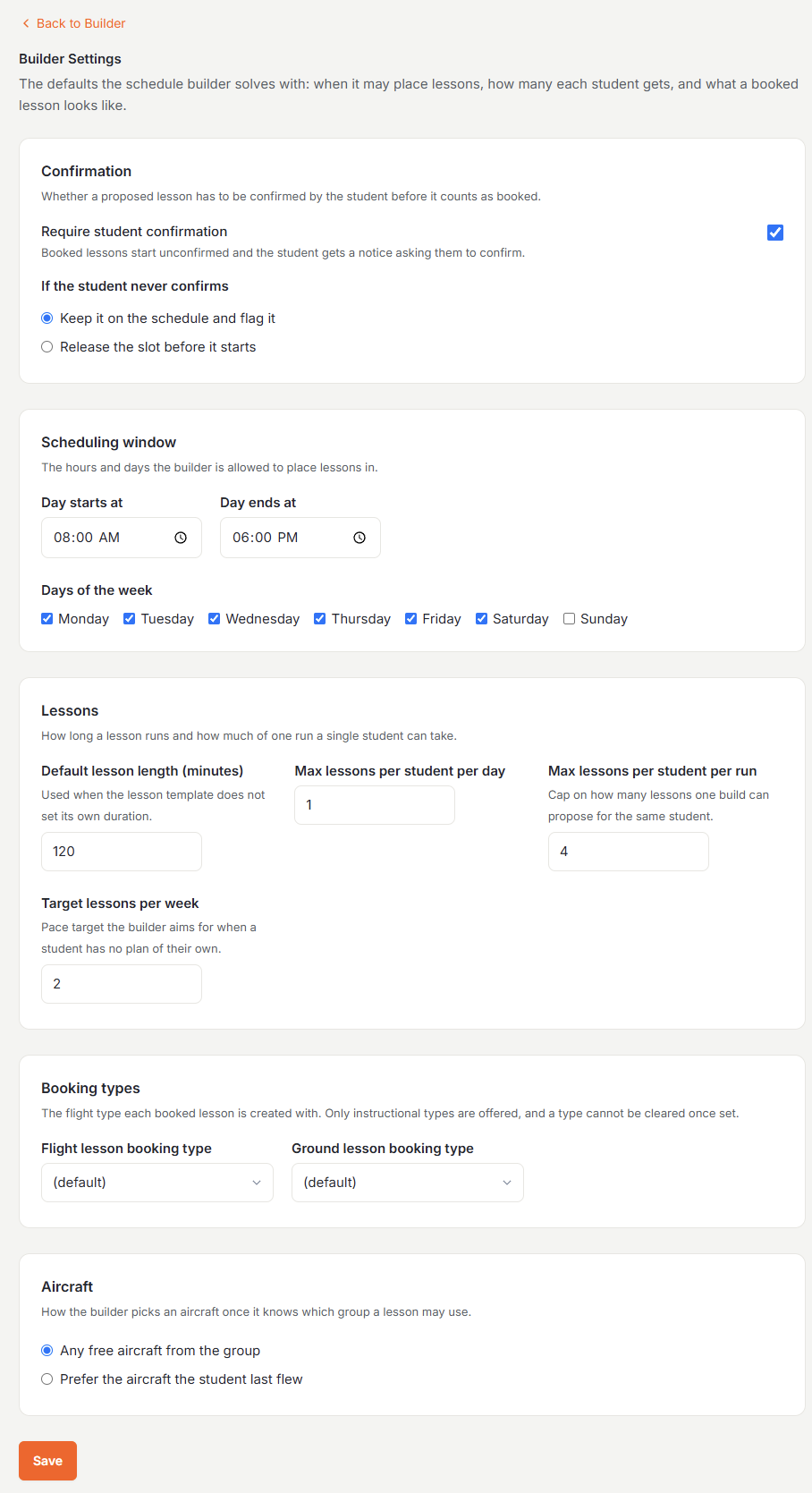
- Require student confirmation, and what happens to a lesson nobody confirms.
- Scheduling window - the earliest and latest the builder may schedule, and which days of the week you teach.
- Default lesson length, for templates that don’t specify one.
- Max lessons per student per day (one by default, so a busy week spreads out instead of stacking).
- Max lessons per student per run, and the target lessons per week the fill aims at.
- Which booking types flight lessons and ground lessons use.
- Which aircraft the builder picks from a group - see Aircraft Groups.
Every setting ships with a sensible default, so the builder works before anyone visits this page.
Which aircraft it picks
Where a lesson needs an airplane, the builder takes a free one at that location, narrowed to an aircraft group when one applies. A lesson template can name a group, a student’s enrollment can be pinned to one, and a syllabus can carry a default; the most specific wins. Aircraft Groups covers how to set them up.
Ground and online lessons schedule with an instructor only, and take no aircraft at all.
Aircraft Groupssetting up the sets a lesson books from.
Was this page helpful?
Can’t find what you need? Contact us - a real person reads every message.