

Billing & Cost Sharing
Autopay
On the admin side you can see who is enrolled, what is about to be charged, and what failed, and set the review window that keeps automatic charging fair.
Members enroll themselves
Autopay is the member’s decision. A member saves a card or bank account and switches autopay on from their own billing settings; there is deliberately no admin switch to turn it on for them. The Auto-pay panel under Billing, then Payments, lists every member with their enrollment status and saved card, unenrolled members first, and a request button emails a member an invitation to enroll.
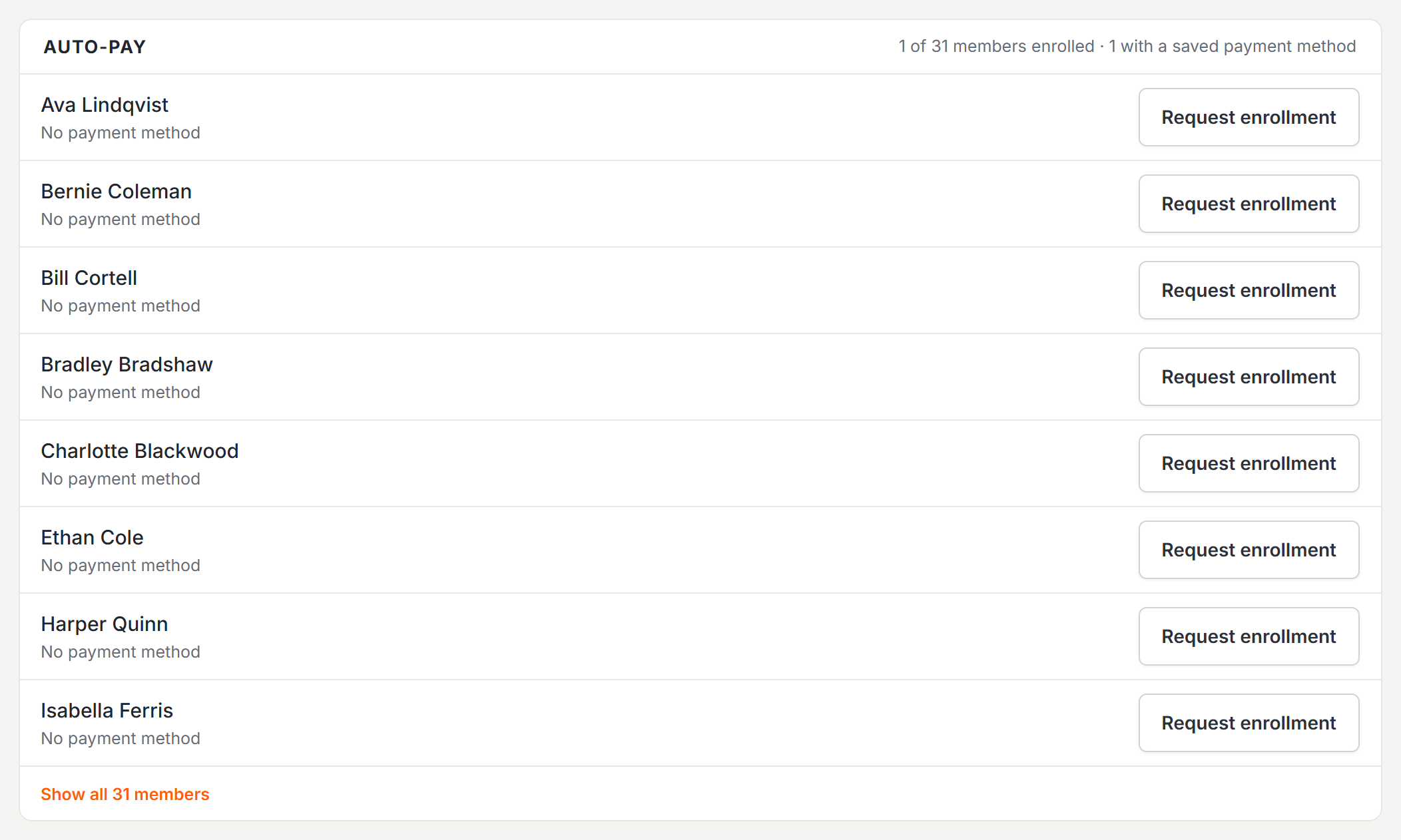
Admins can switch a member’s autopay off when a card dispute is brewing, or when the member asked the office to stop it. The member is emailed when that happens, and the action lands in the audit log.
The review window
Under Settings, then Invoicing, set a review window of up to 30 days. Invoices to autopay members wait that many days before the charge runs, and the invoice email tells the member the exact date and the card that will be used. Zero days means charges run right away.
Watching the queue
The same Auto-pay panel shows charges queued and waiting on the review window, charges being retried after a failure, and members whose retries are exhausted and need a human. Failed charges retry on a spaced schedule over the following week, with a failure email to the member each time.
What autopay charges
Autopay only charges invoiced amounts, and only for members who enrolled. If charges have been accumulating uninvoiced, review what the next invoice sweep will produce before enrolling members, because the backlog becomes the first automatic charge.
When Invoices Are Createdthe sweep that produces what autopay collects.
Recurring Duesthe member-side enrollment and per-assignment overrides.
Was this page helpful?
Can’t find what you need? Contact us - a real person reads every message.