

Scheduling
Find a Time
Tell the schedule what you want to fly, with whom, and for how long, and it hands you every slot in the next two weeks that works.
Starting a search
The Find a time button sits on the Schedule. Pick an activity, an aircraft, an instructor if the activity takes one, and a duration. The aircraft choice can be a specific tail, an aircraft group like “any Cessna 172”, or Any aircraft. Duration offers common lengths plus Custom, where you type any number of hours up to 24, so a day trip does not have to fit a preset.
Your last search is remembered. Next time the finder opens already set to your usual aircraft, instructor, and lesson length.
Reading the results
Results come back as days with openings, a day-by-day list covering the next two weeks. Each opening is a slot where the aircraft is free and airworthy and, if an instructor is in the search, the instructor is working and unbooked. Openings the rules would refuse are not shown, so everything on the list is bookable.
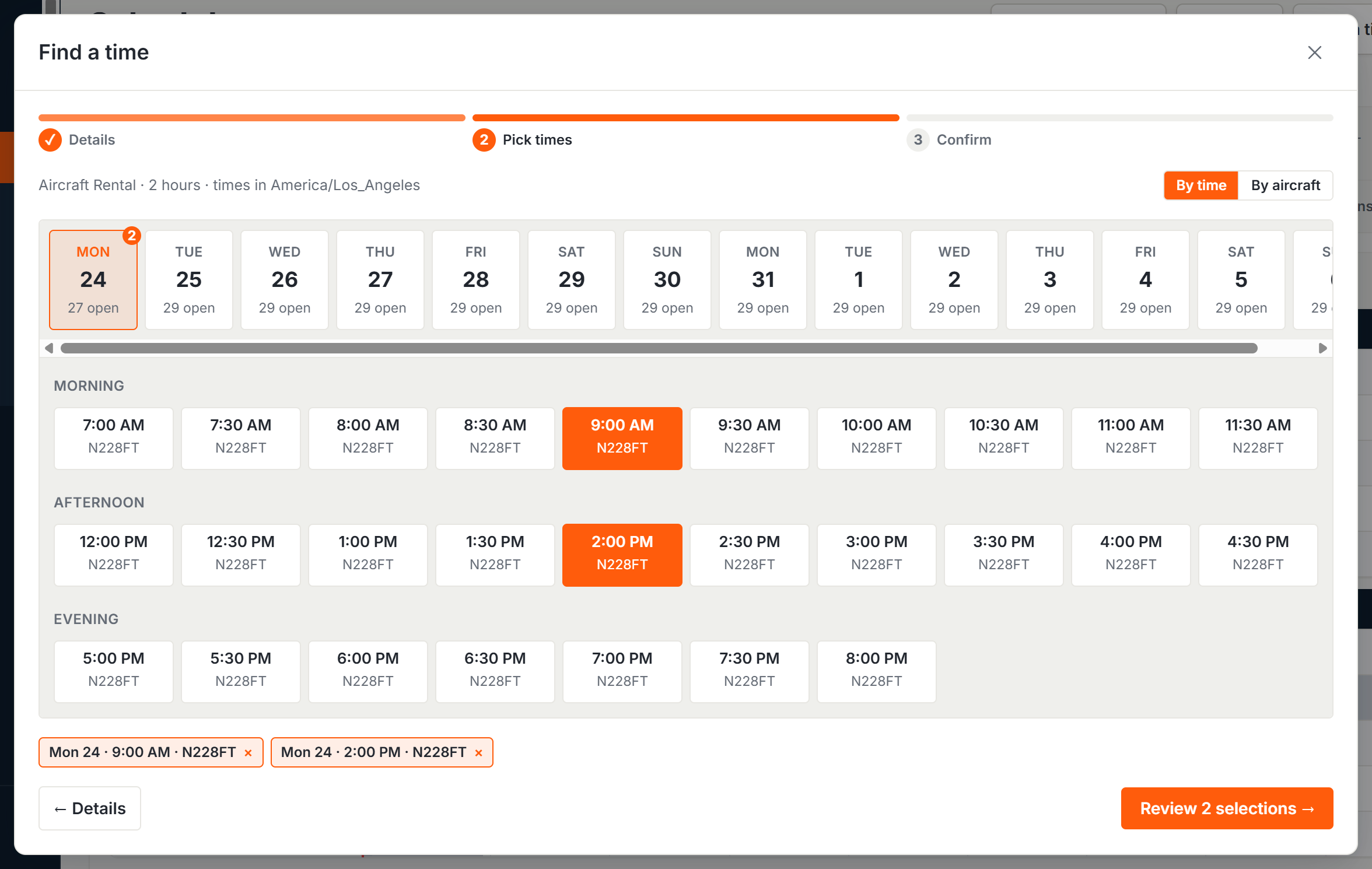
Switch the view to group results by aircraft instead of by time of day, useful when the question is “which tail can I get” rather than “when can I go”. The by-aircraft view shows each tail’s hourly rate next to it. A checkout filter narrows results to aircraft you hold a checkout on.
Booking one slot, or several
Select an opening and book it, or select several and book them all in one go - lining up a week of lessons with the same instructor and airplane is one search and one confirmation. Each booking still runs your organization’s scheduling rules; anything that needs a confirmation or is blocked says so on the spot, and the rest book cleanly.
Booking for someone else
Front desk staff and instructors who can book for others get a Booking for picker at the top of the finder. Every check then runs against that pilot. A student only gets times and aircraft that work for them, including their checkouts and authorized locations.
Who has it
Everyone who can book has Find a time by default. Organizations that want it limited can turn it off per role under Roles & Access. The setting is named Find a time, in the Scheduling section.
Scheduling Basicsthe calendar itself, and the rules every booking runs.
Was this page helpful?
Can’t find what you need? Contact us - a real person reads every message.