

Getting Started
Resyrv on Your Phone
Resyrv runs in your phone’s browser with the whole app behind it. The layout changes to fit the screen, and you can book, dispatch, return, grade, and settle from the ramp.
Open resyrv.com in your phone’s browser and sign in as usual. Add it to your home screen and it opens like an app.
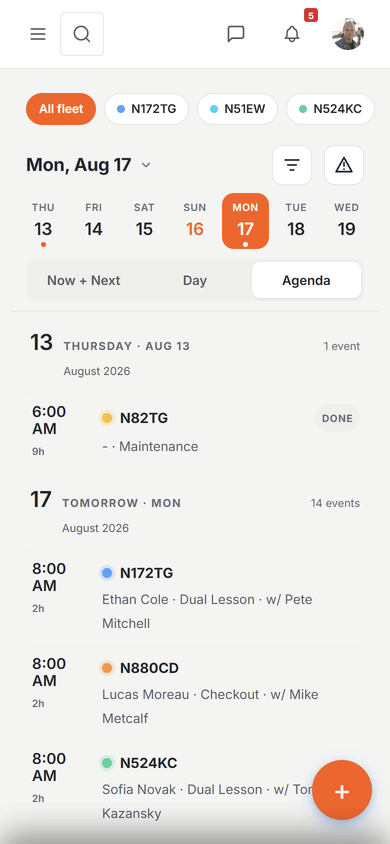
Getting around
- The top bar stays pinned while you scroll, so the menu and your account are always one tap away.
- Pages with several views (maintenance, billing, training, the store) collapse their section tabs into a single orange switch button under the page title. Tap it for the list of views.
- Filters on busy lists tuck behind one Filters button rather than a row of controls running off the edge.
- Cards run close to the screen edges, so a line of text or a meter reading fits instead of trailing off.
- Dashboard stat blocks move below the content on a phone, so what you came for is at the top.
The schedule
The phone schedule leads with Now & Next (what’s airborne, what’s coming) above the day’s agenda. A returned aircraft drops out of "airborne" the moment it’s checked in, not when its booking was due to end, so the fleet count on your phone is the real one.
Filter by aircraft group to cut a large fleet down to the tails you’re working with, the same as on a computer.
Booking from a phone
Tap to start a booking and a sheet slides up: what you’re booking and who it’s for, the aircraft, the times, then a review step that prices the reservation before you commit. Choosing a dual lesson adds the instructor picker right there with the rest of the fields, listing the instructors bookable at that location and marking anyone already busy.
Dates and times open your phone’s own picker rather than a cramped set of boxes. Times are always the field’s local time, whatever your phone is set to.
Staff booking a training lesson can attach the student’s enrollment and syllabus lesson from the phone sheet, exactly as on a computer, so a lesson booked on the ramp still counts toward the student’s progress and turns up for grading.
Dispatch and return on the ramp
Dispatch and return run the full flow on a phone: the same readiness checks, the same meter verification, the same meter-discrepancy reporting, fuel and oil, signature PINs, and the instructor acknowledgement at return. Nothing is skipped because you’re on a small screen. The sheet asks for everything the desktop dialog does, and the billing preview shows the same numbers.
Text fields inside these sheets are sized so an iPhone won’t zoom and pan the page when you tap into one, which used to make entering a Hobbs reading a fight.
Lists become cards
Anywhere a computer shows a table (members, aircraft, maintenance items, work orders, training classes, enrollments, grading records, expenses), a phone shows readable cards instead of a table you scroll sideways. The information is the same; it stacks.
Training on a phone
Training Operations, student records, pace, and grading all read properly on a phone, and a student’s My Training page shows their stage, their next lesson, and their full plan without the progress bars crowding the text.
Was this page helpful?
Can’t find what you need? Contact us - a real person reads every message.