

How-to Guides
Ground an Aircraft and Return It to Service
Something came back broken. This guide files the squawk, grounds the aircraft so nobody dispatches it, tracks the fix through a work order, and returns it to service, with the schedule protected the whole way.
Step 1 - File the squawk
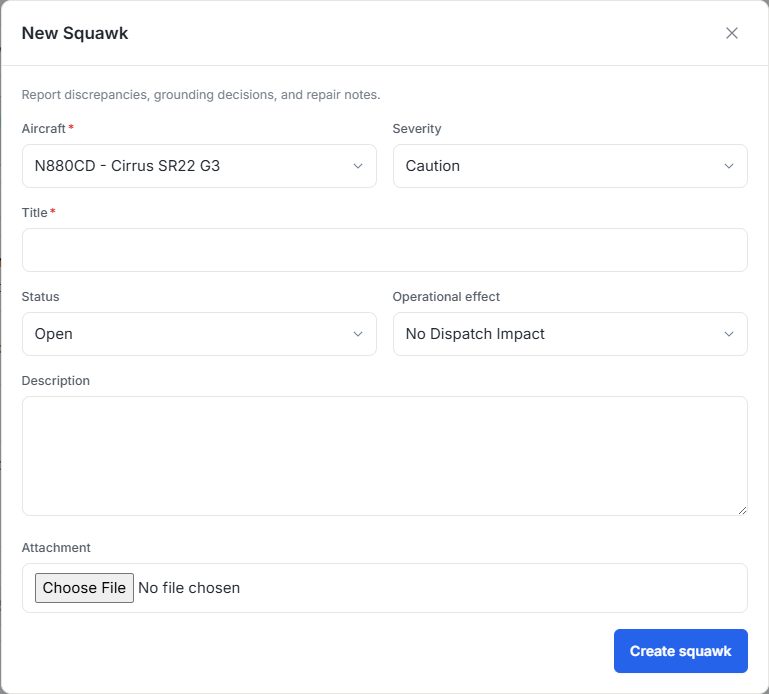
- From the aircraft page or straight from the return wizard, choose Report a squawk.
- Describe the problem, set the severity, then set the operational effect separately. Severity says how bad it is; the operational effect says whether the aircraft can still fly.
- Choose Grounded if the aircraft shouldn’t fly until the problem is fixed.
What grounding does
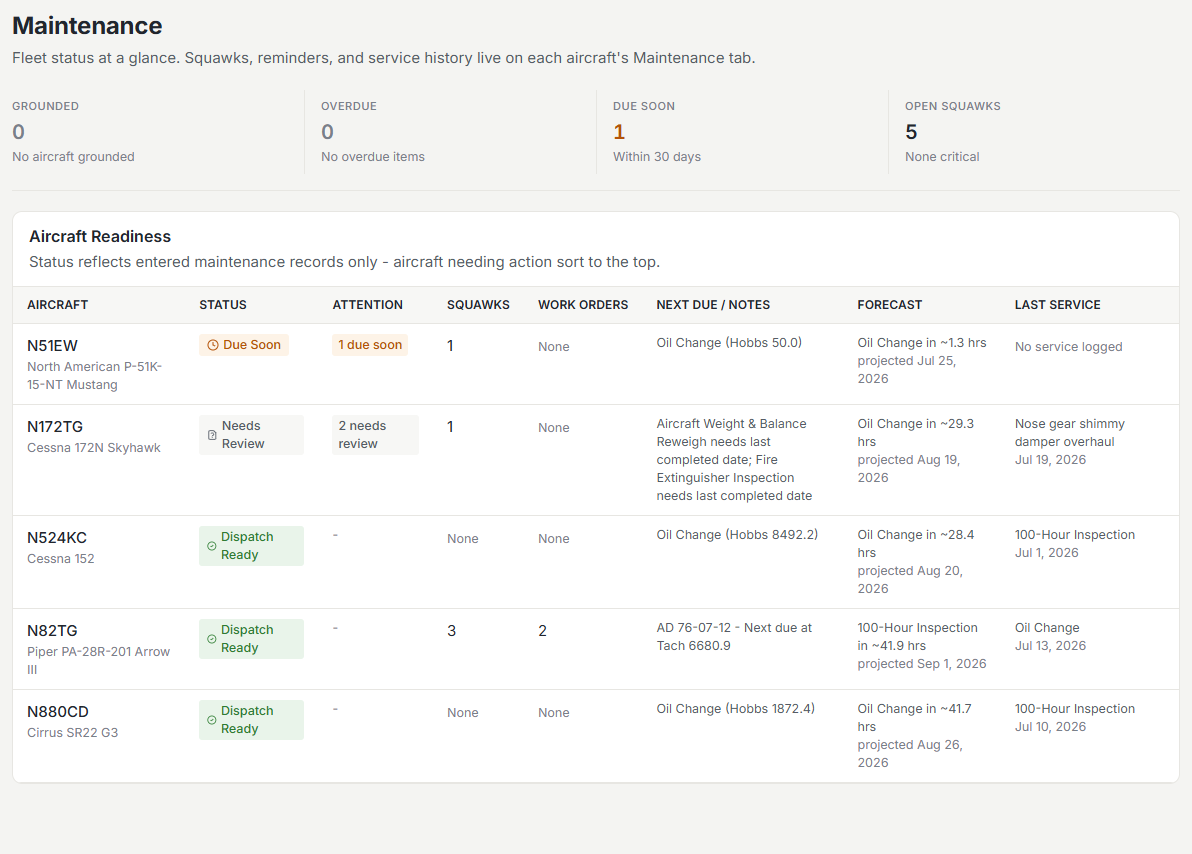
A grounding squawk flips the aircraft’s readiness across Resyrv: the maintenance board shows it down, and the dispatch pre-flight check fails with a hard stop for any reservation on that aircraft.
Step 2 - Work the fix
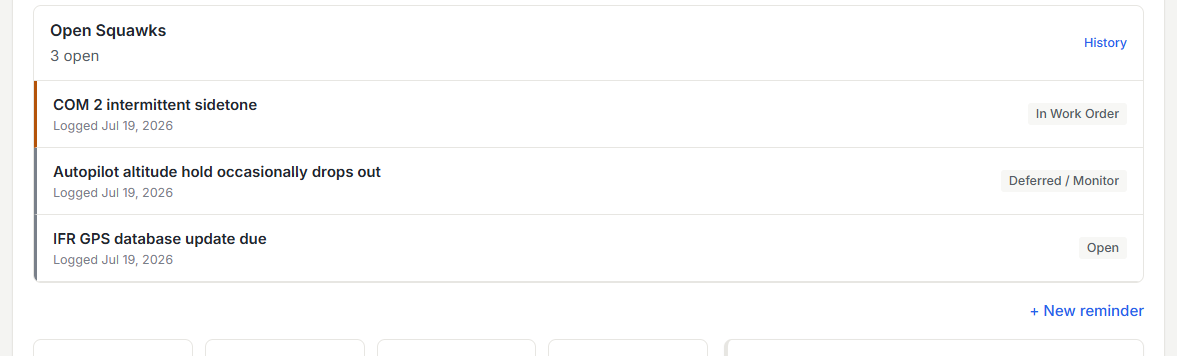
- Open Maintenance and triage the squawk. Open squawks move through open, in work order, deferred, and resolved.
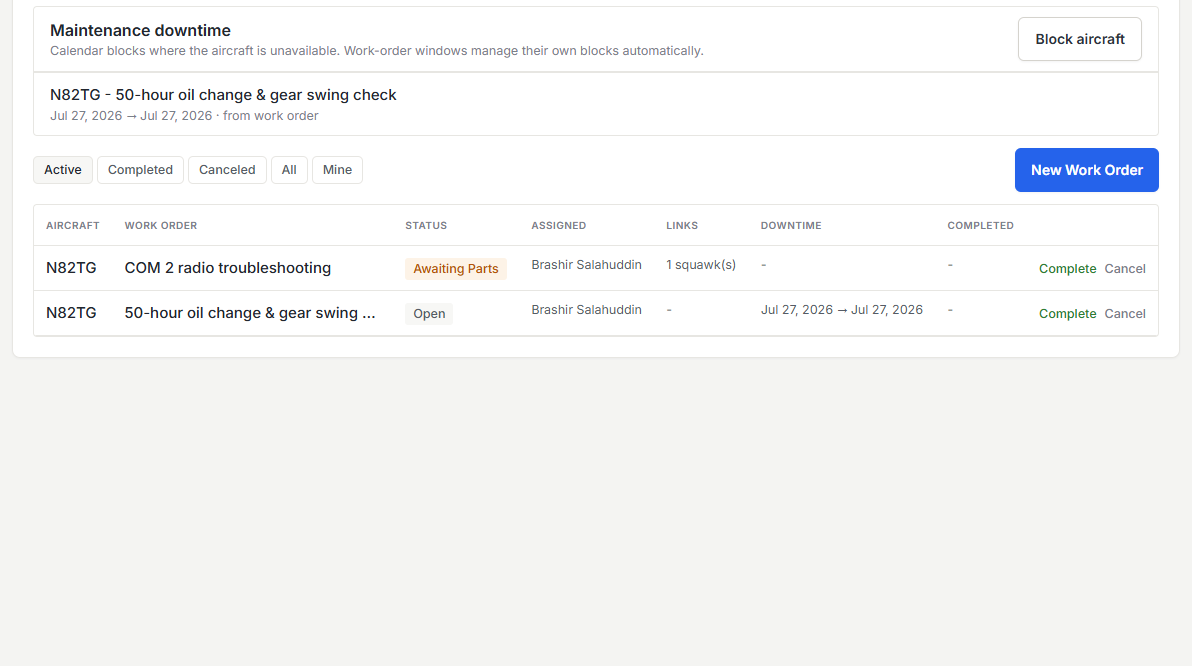
- Pull the squawk into a work order, along with any due maintenance items worth knocking out during the same downtime.
- Record the work as it happens. The work order is the paper trail for what was done and by whom.
Step 3 - Return to service
- Complete the work order and return the aircraft to service.
- The resolved squawk closes out, readiness flips back, and dispatch checks pass again.
Was this page helpful?
Can’t find what you need? Contact us - a real person reads every message.