

Scheduling
Scheduling Basics
Every member sees the same calendar, and every rule your group sets is enforced the moment a booking is saved.
Calendar views
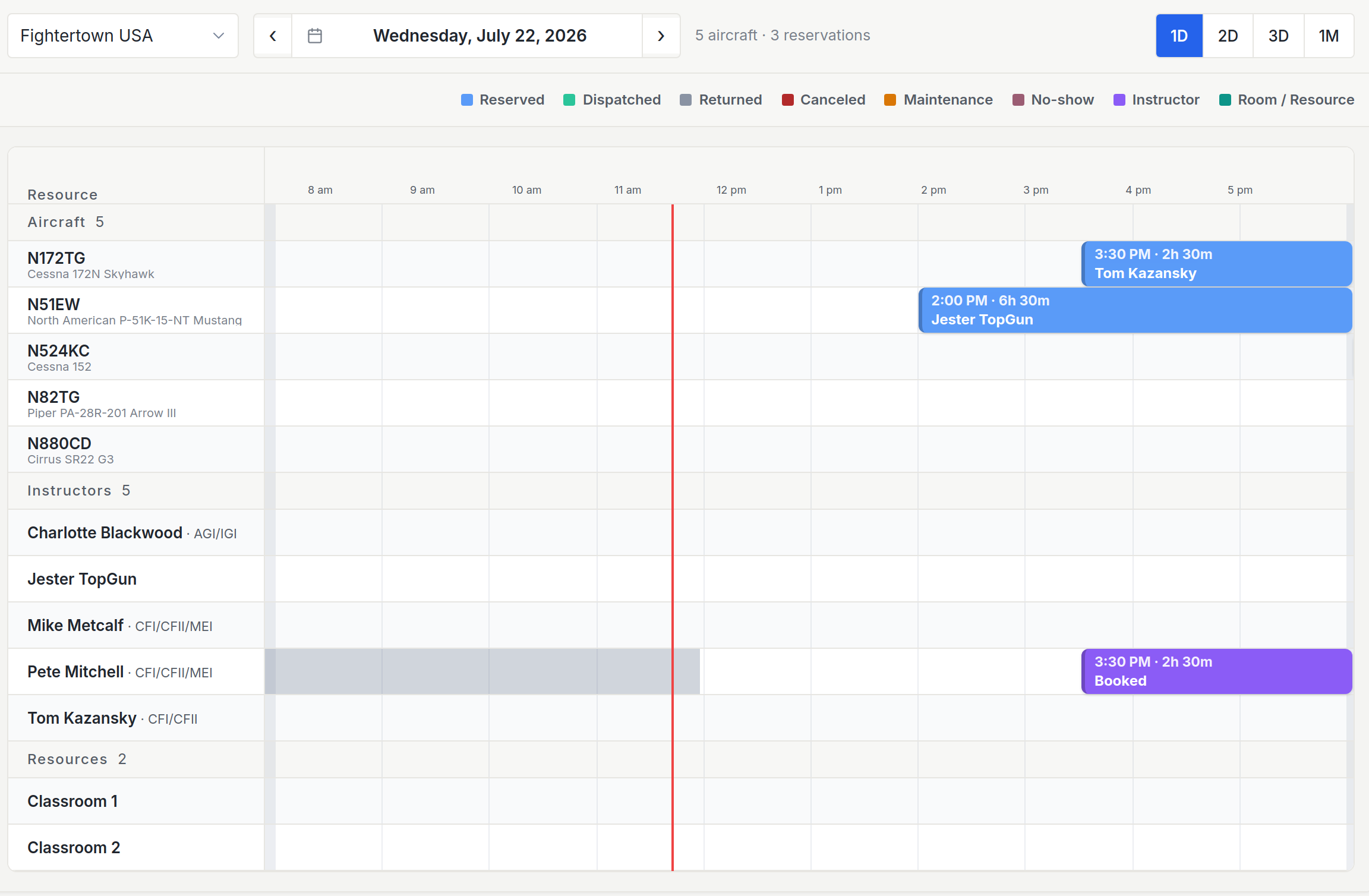
The schedule offers a day and multi-day dispatch timeline plus a week grid. Use the date navigator at the top to move between days and switch views; each view remembers a sensible width so the layout never feels cramped.
- Dispatch timeline (1 and 2 day) - each aircraft is a row and reservations are blocks across the day, so fleet-wide availability is obvious at a glance.
- Week grid (3-day and full week) - a time grid that trades per-aircraft rows for a broader span when you’re planning further out.
On the timeline, off-hours are compressed. The quiet overnight stretch shrinks so the active flying day fills your screen instead of scrolling past empty ramp time.
The clock the calendar runs on
The schedule is always drawn in the location’s local time, not the viewer’s. Open it from a hotel three timezones away, or from a laptop whose clock is set wrong, and every reservation still reads at the time it happens at the field. The toolbar names the timezone being shown, so there’s never a question about which clock you’re looking at.
That timezone comes from the location itself, under Locations. Picking a street address fills it in automatically, and admins see a link on the schedule if a location still needs one set.
Narrowing a busy calendar
Filter the schedule by aircraft group to cut a large fleet down to the tails you care about right now, on a computer and on a phone. Groups are yours to define under Aircraft, then Groups; see Aircraft Groups.
Aircraft Groupsnaming the sets of tails you fly.
Making a reservation
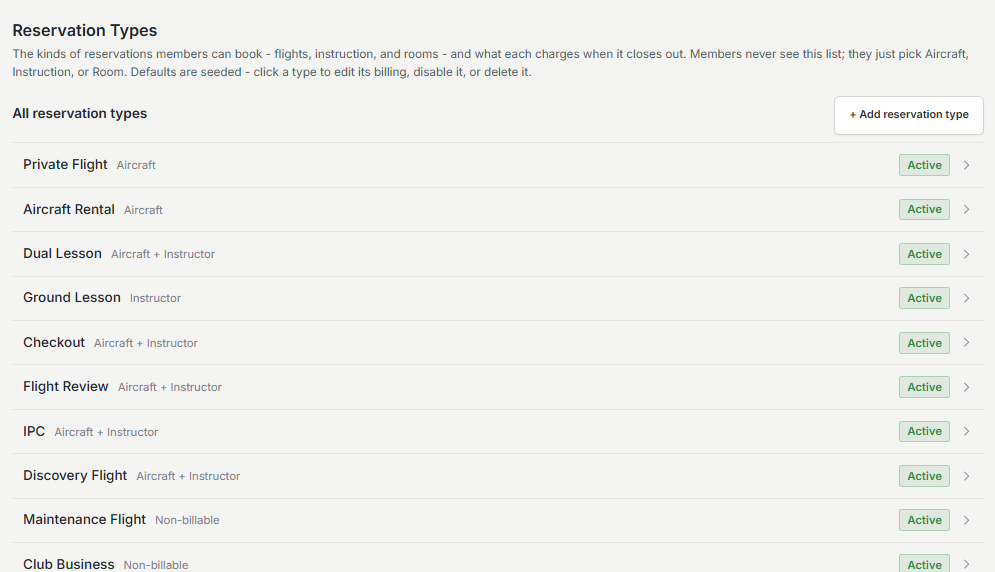
Click an open slot, pick the aircraft and time window, and save. Depending on your organization’s setup you may also choose a reservation type and, for a lesson, attach an instructor.
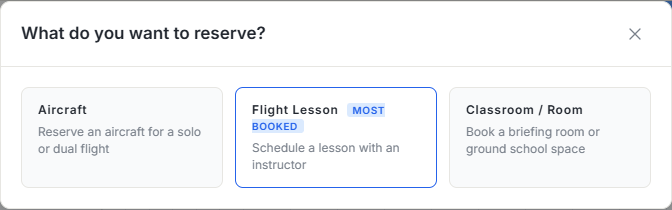
- Flight - a member booking an aircraft to fly.
- Lesson - a flight or ground session with an instructor attached. For organizations running structured training, a lesson can also name the student’s enrollment and syllabus lesson, which makes the booking show up for grading and progress automatically.
- Room - a bookable ground resource such as a classroom or briefing room, for training that isn’t in the air.
Reading the calendar
Hover any reservation to get a summary card - aircraft, pilot, time, and type - without opening it. Click through to the full reservation view when you need to edit, cancel, or jump to a linked checkout or lesson.
Conflicts and guardrails
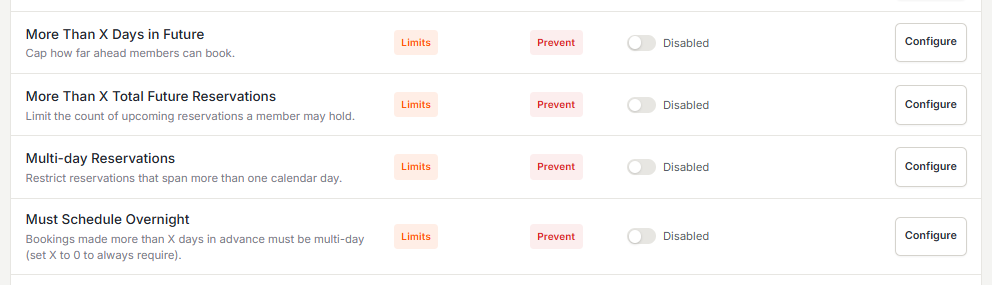
The reservation form checks your booking against the rules while you fill it in, not after you submit. Anything that would make the server refuse the booking - a grounded aircraft, a slot the aircraft or pilot already holds, a missing checkout, an instructor who is not available, a start time in the past - appears as a plain reason in a red box under the aircraft field, and the book button stays off until every reason is resolved. You never fill out a whole form only to be refused at the end.
- Double-booking an aircraft is blocked outright.
- Grounded aircraft can’t be booked. Members holding upcoming bookings are notified when an aircraft is grounded.
- An aircraft with maintenance due, or coming due before your booking ends, warns at booking time so nobody shows up to a plane about to go down for inspection. The booking still saves after you confirm the warning.
- Bookings in the past are guarded so the flying history stays trustworthy.
- A lesson with an instructor who is already booked, on time off, or outside their working hours is blocked or warned, depending on how your organization set the availability rule.
The grounding and maintenance checks use the same maintenance records that drive dispatch, so the schedule and the dispatch desk never disagree about whether an aircraft is fit to book. Owners and admins can tune the rule per organization or per location, for example relaxing the grounding block to a warning.
Weather on the schedule
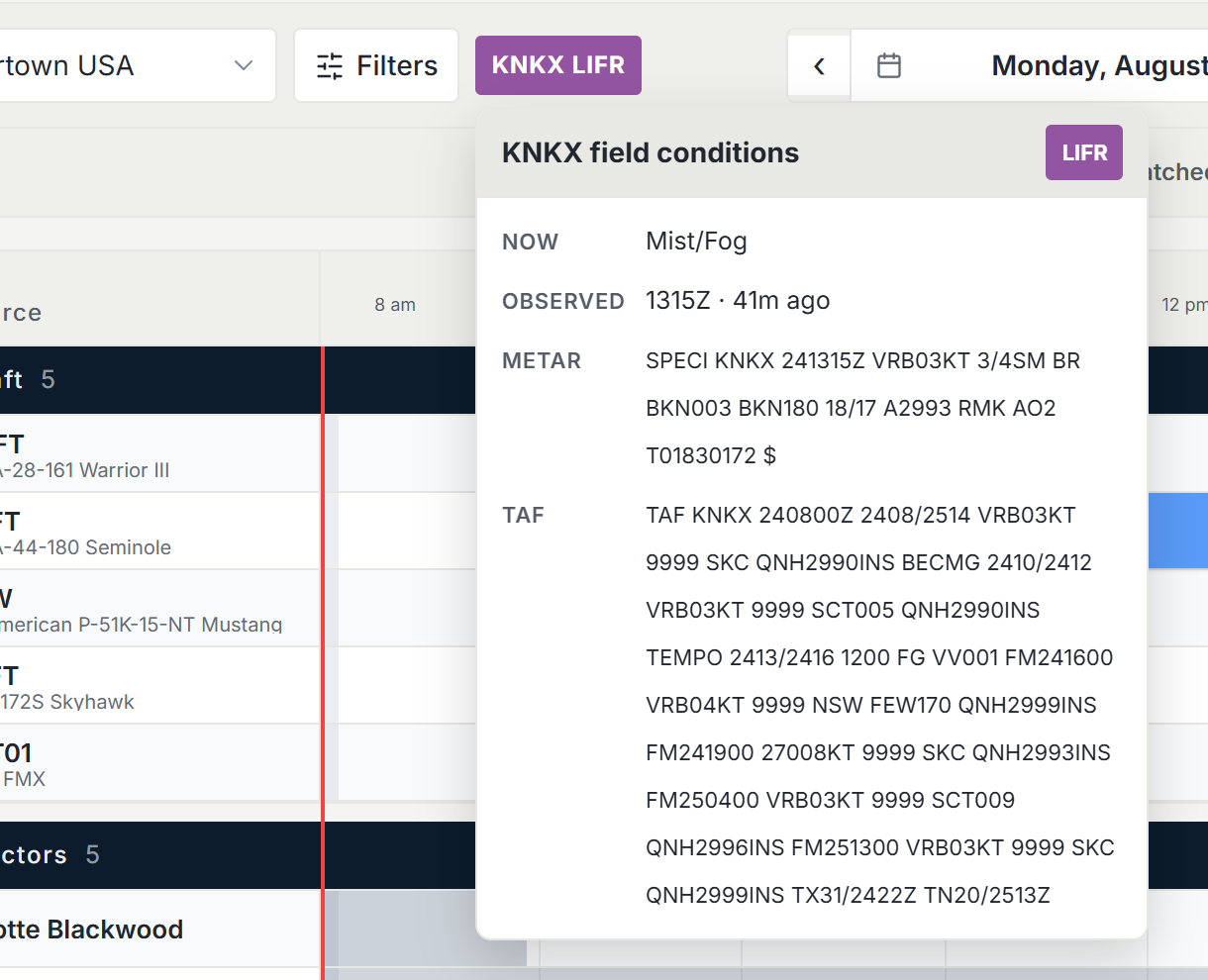
The schedule shows current flight conditions for the field, colored the way pilots expect: green for VFR, blue for MVFR, red for IFR, magenta for LIFR. Hover the chip for the details behind it - the raw METAR and the TAF - so a go or no-go conversation can start without leaving the page. Conditions come from the location’s airport identifier, set under Locations.
Editing and canceling
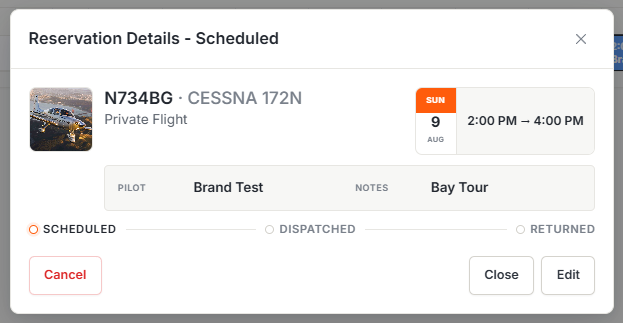
The reservation owner and anyone with scheduling permission can edit or cancel from the reservation view. Canceled reservations drop off the calendar display but stay in the record, so nothing is ever silently erased.
If your group charges late-cancellation fees, a qualifying cancellation is routed to an admin review queue rather than billed automatically, where an admin approves or waives it.
Catching a cancellation
Opt into cancellation notices on an aircraft, and when a reservation is canceled Resyrv emails everyone watching whose preferences match the freed slot. Tune the match with a how-far-out limit and your recurring availability windows, or name specific dates you want, which overrides every other filter for those dates. Notices only go to members who could book the aircraft, so nobody gets teased with a slot they can’t take.
Was this page helpful?
Can’t find what you need? Contact us - a real person reads every message.