

Flying & Logbook
Digital Pilot Logbook and Currency
In addition to the shared aircraft records, each pilot has a personal digital logbook. It has currency tracking, reports, and CSV import.
Where to find it
Your logbook is yours. It is separate from the flight log of the organization. To see your entries, open My logbook in the sidebar. Reports, Aircraft, Endorsements, and Settings are separate pages below it.
Entries
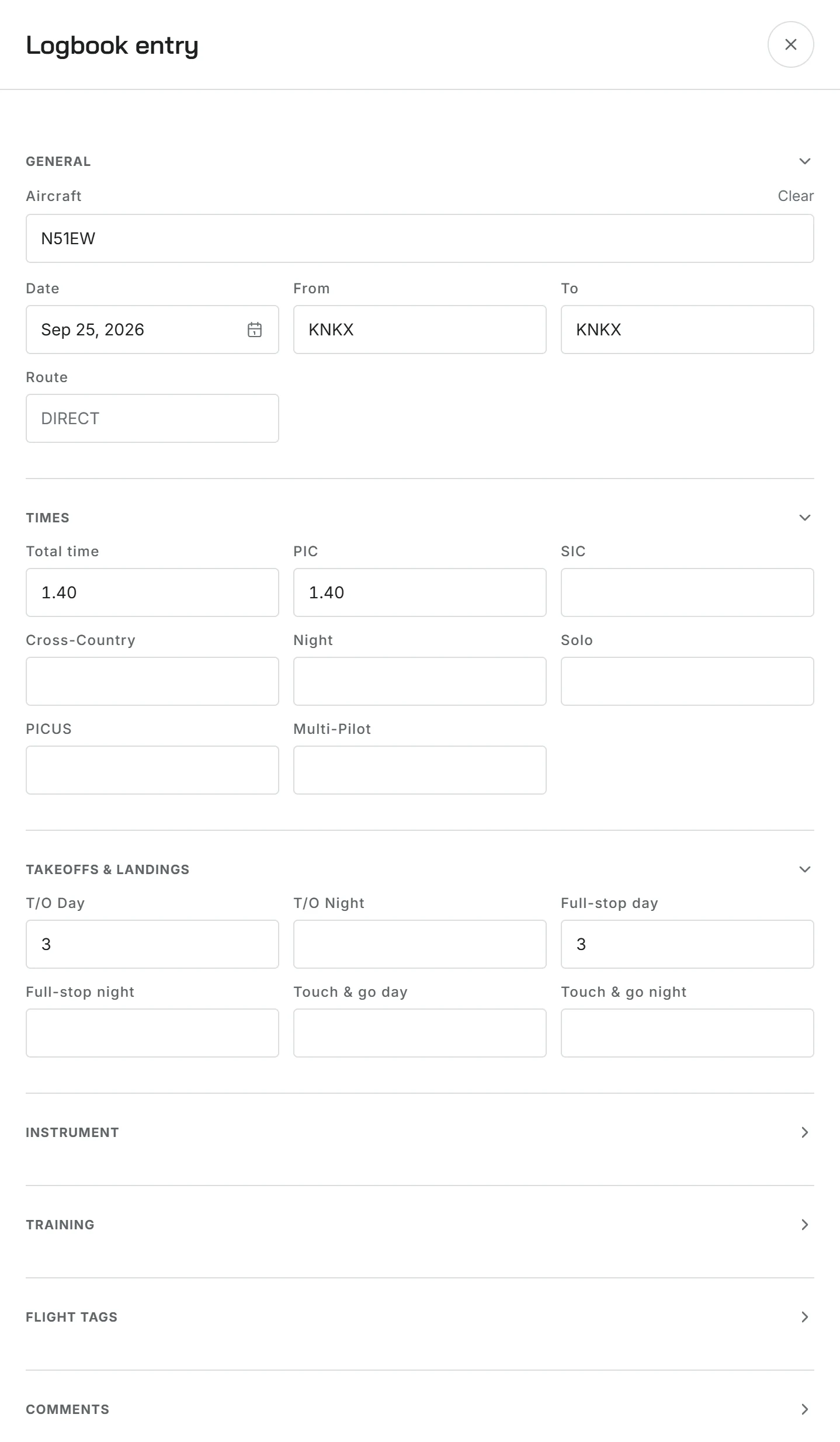
Add an entry for each flight with the data that a paper logbook holds: the date, the aircraft, the times for each category, and the takeoff and landing counts for currency. Select an entry in the list to open its full details. In settings, select the columns that you want. Then the form does not show fields that you never use.
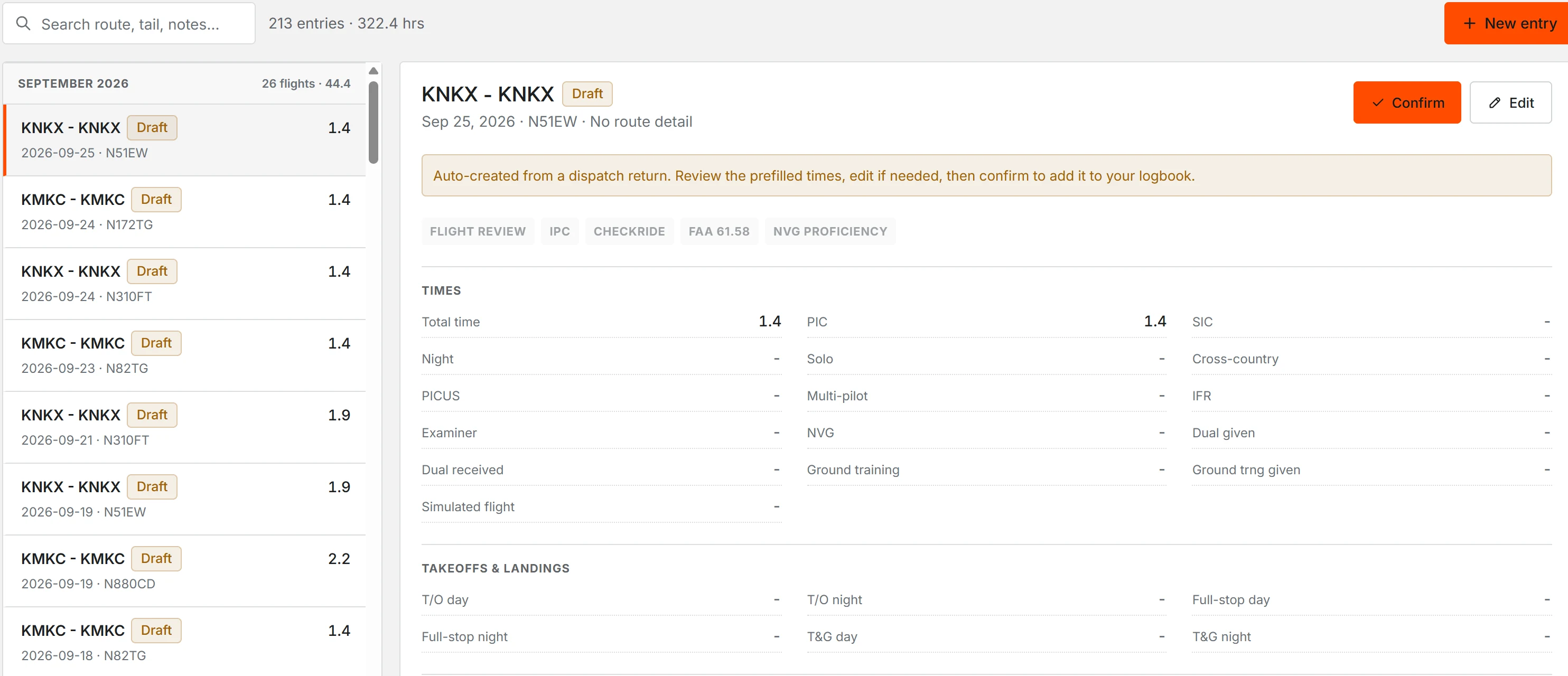
The logbook is only yours, so you can edit or delete entries at any time. Entries do not post or lock. When you return an aircraft through dispatch, Resyrv makes a draft entry for you. It also does this when you log a flight with Add to my logbook ticked. The list marks drafts as Draft. Open a draft to confirm it, or edit it first.
Import from ForeFlight
Export your ForeFlight logbook to CSV and import it. First, Resyrv shows a preview of the entries, so you can examine the mapping before you import. If Resyrv does not recognize a column, it tells you that it did not keep those values. It does not guess.
Currency tracking
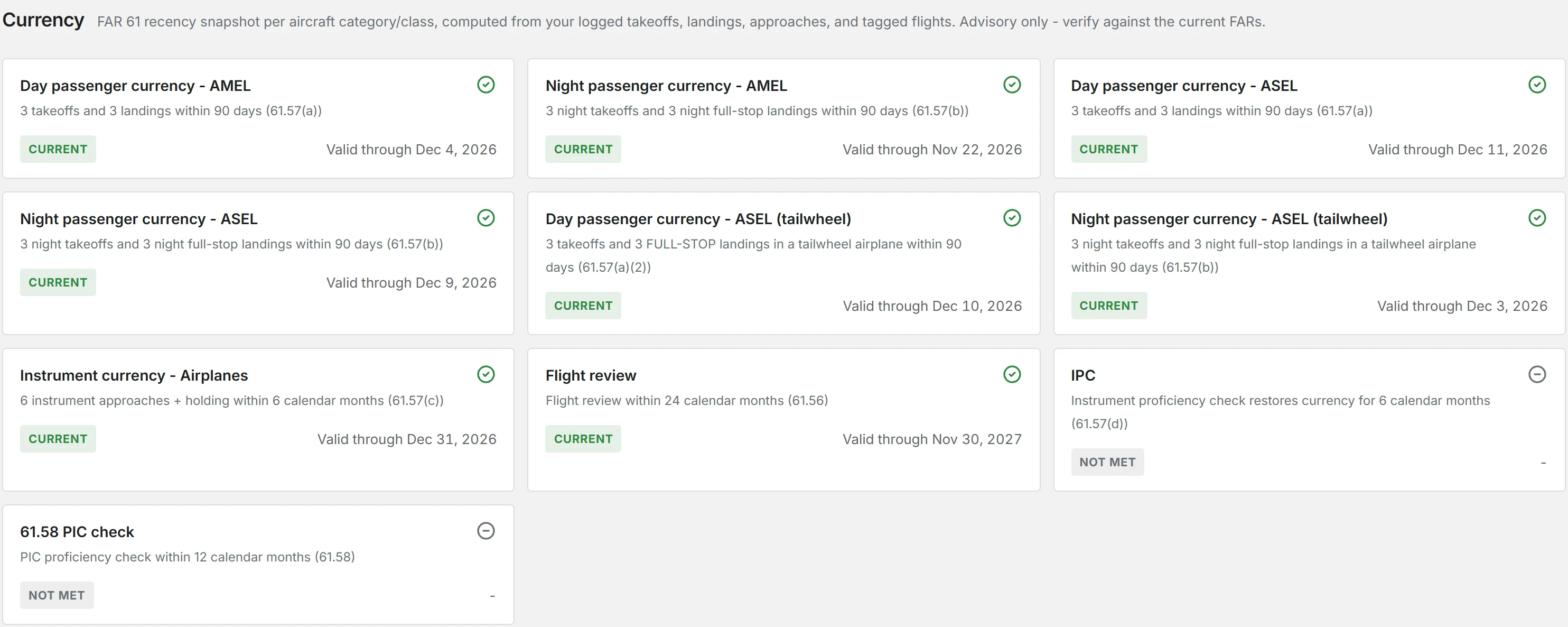
The Reports page reads your entries and calculates your FAR 61.57 currency automatically. Thus you always know what you are legal to do:
- Day passenger currency - three takeoffs and landings in the last 90 days.
- Night passenger currency - three takeoffs and full-stop landings at night in the last 90 days.
- Instrument currency - six approaches and holding in the last six calendar months. If this currency lapses, an instrument proficiency check gives it back.
Resyrv counts approaches and holding. It does not track course intercepting and tracking. It also does not show the six-month grace period, in which you can still get currency back with a safety pilot.
Each card shows Current, Expiring, Expired, or Not met, with the date that the currency ends. Resyrv shows passenger currency for each aircraft category and class, with tailwheel separate. Other cards show the flight review, the IPC, and the 61.58 PIC check.
Reports
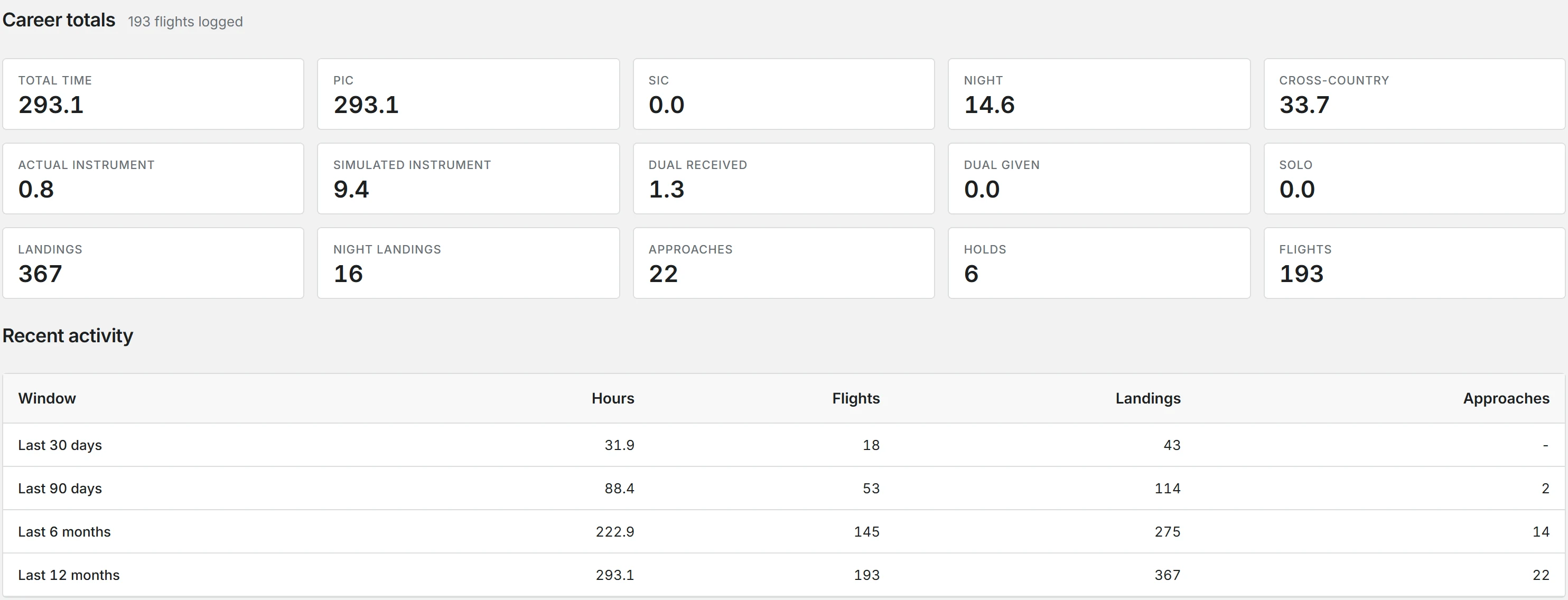
The Reports page adds your entries into career totals and rolling periods: the last 30 and 90 days, and the last six and twelve months. You use these numbers at a flight review, or to calculate recent experience for an application.
The same page also shows your progress toward the checkride requirements for a certificate or rating that you select from the list. It also shows an experience report for each aircraft type, and your aeronautical experience in the FAA 8710 layout. You can download the experience report and the FAA 8710 table as PDFs.
Was this page helpful?
Thanks - that helps. Tell us what was missing and we will fix the page.
Can’t find what you need? Contact us - a real person reads every message.