

Getting Started
Organization Settings
Organization settings is where an owner shapes the workspace: your name and branding, your join link, and the operating policies every member flies under.
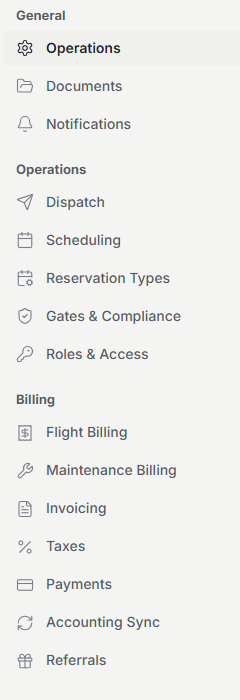
Finding settings
Organization settings live under a grouped side navigation (General, Operations, and Billing) so related controls sit together. What you see depends on your permissions; owners see everything, and other roles see only the sections they can act on.
Name and logo
The organization name is what members see across the app, in emails, and on invite links. Only the owner can change it.
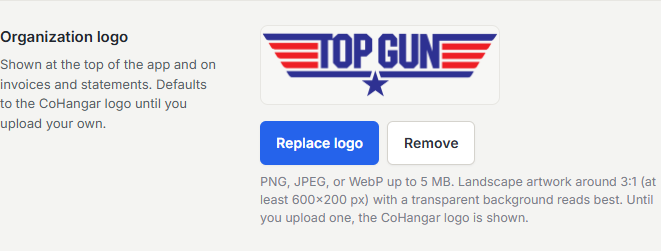
Your logo appears at the top of the app and on every document Resyrv generates for you, from invoices and statements to training paperwork and maintenance records. Upload a PNG, JPEG, or WebP up to 25 MB. Landscape artwork around 3:1 on a transparent background reads best. Until you upload one, the Resyrv logo is shown.
Your invite link
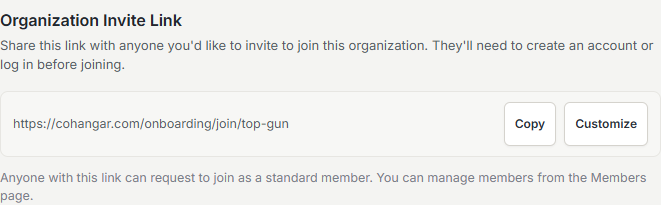
The Operations tab carries your organization’s invite link. Anyone with it can request to join as a standard member, and owners can customize the link’s slug so it reads cleanly when you paste it into a group chat or newsletter.
Locations
Multi-base organizations manage their fields on the dedicated Locations page rather than a settings tab. That’s where you add fields, set a home base per aircraft, and set the authorized-location rules that keep each member’s roster relevant.
Operating hours
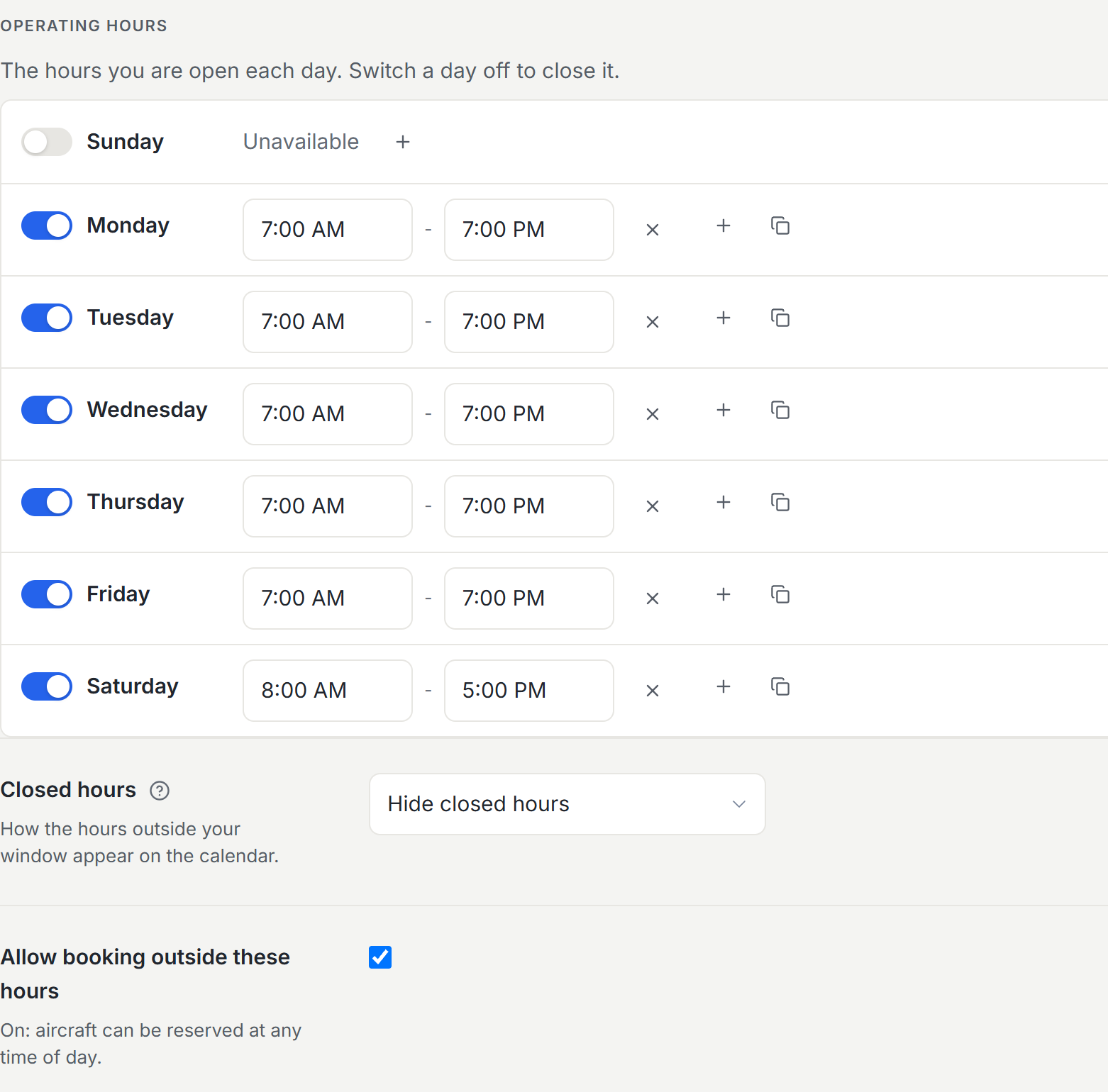
Under Scheduling, Operating hours is one row per day with a switch and the hours beside it. Switch a day off and it reads Unavailable, so that day is closed. The plus button adds a second range on a day, and the copy button puts one day’s hours onto another. A range that ends at 12:00 AM closes at midnight.
The calendar focuses on those hours and tints each day’s closed hours in its own column, so a closed Sunday reads grey top to bottom. Find a Time only proposes openings inside them, and the phone schedule’s Day view shows the hours in force for that day.
Allow booking outside these hours, just below the week, is on to begin with, so setting hours changes nothing about who can book when. Switch it off and an aircraft reservation must start and end inside that day’s open hours. The refusal shows in the booking form while you are still writing the reservation, in plain words such as closed on Sundays, and the book button stays off until the time works. Classroom bookings and instructor blocks are not checked, and reservations already on the calendar are never moved by a change to the hours.
Every location follows these hours until you give it hours of its own: on the Locations page, edit a location and switch on Use different hours here. Those hours apply to the aircraft based there, in that field’s own timezone, and the location’s Details page reads the week back in one line.
Operating policies
The rest of settings is where your group’s rules live. A few worth knowing early:
- Documents - choose which documents your organization keeps on file for members and aircraft.
- Maintenance behavior - how far ahead items flip to Due Soon, and whether incomplete compliance grounds an aircraft or just warns.
- Scheduling and dispatch - fleet access defaults, reservation types, and dispatch rules.
- Billing - flight billing, maintenance billing, invoicing, taxes, and payments each have their own tab.
Was this page helpful?
Can’t find what you need? Contact us - a real person reads every message.